> ## Documentation Index
> Fetch the complete documentation index at: https://docs.heffl.com/llms.txt
> Use this file to discover all available pages before exploring further.
# How to Sign Up and Log In
## How to sign up and log in
This guide walks you through creating a new Heffl account, logging in, and managing your session.
***
## Creating a new account
### **Step 1: Go to the signup page**
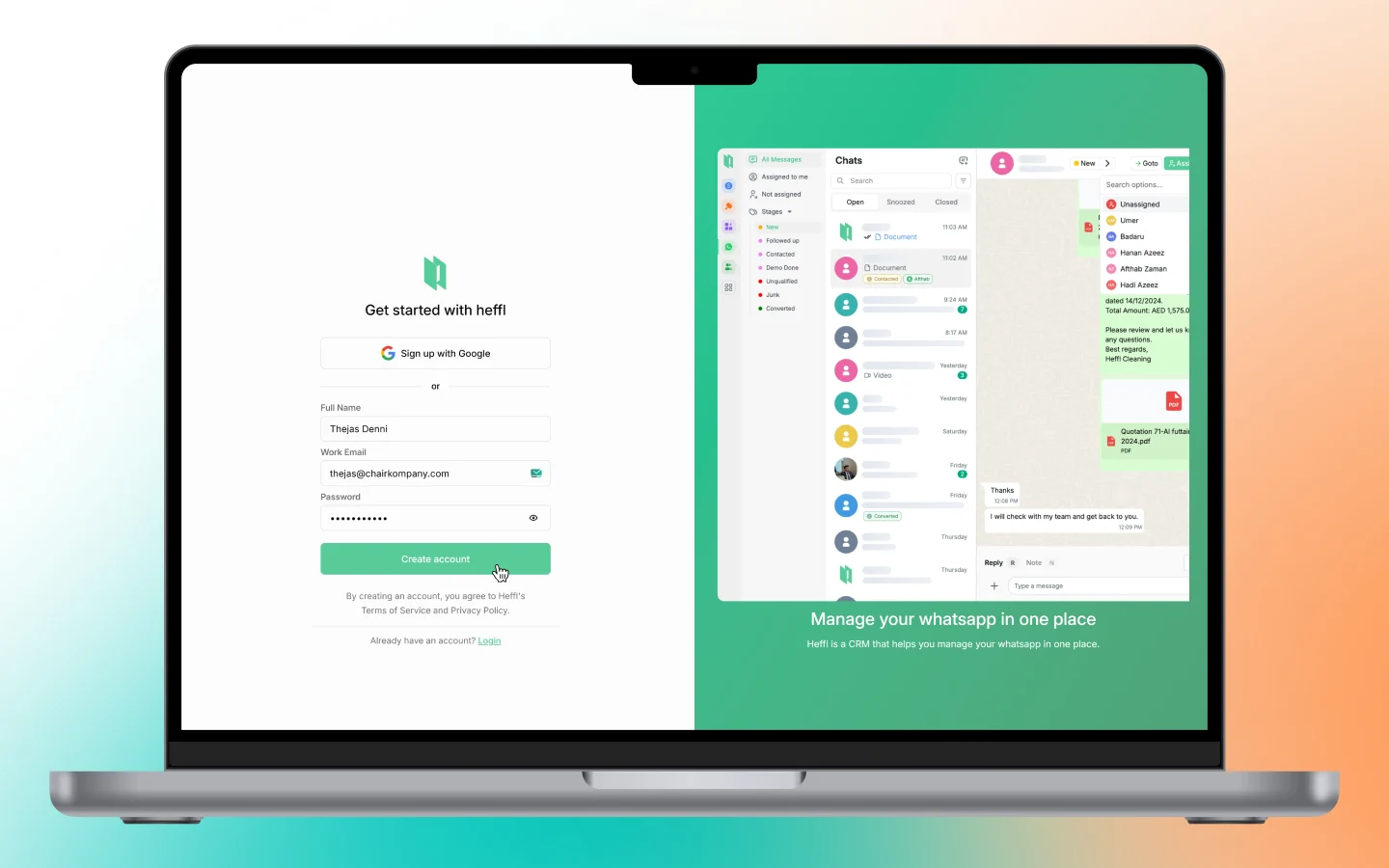
Visit [app.heffl.com/signup](http://app.heffl.com/signup). You will see a registration form ready for your details.
### **Step 2: Enter your information**
* Name: Enter your full name
* Email: Use a valid email address (you will need to verify it)
* Password: Create a strong password of at least 8 characters
 ### **Step 3: Select your timezone**
Heffl automatically detects your timezone. Change it if needed to ensure dates and times display correctly across your workspace.
### **Step 4: Submit the form**
Click "Sign up". Heffl will create your account, send a verification email, and log you in automatically.
***
## Joining via team invitation
### **Step 1: Check your email**
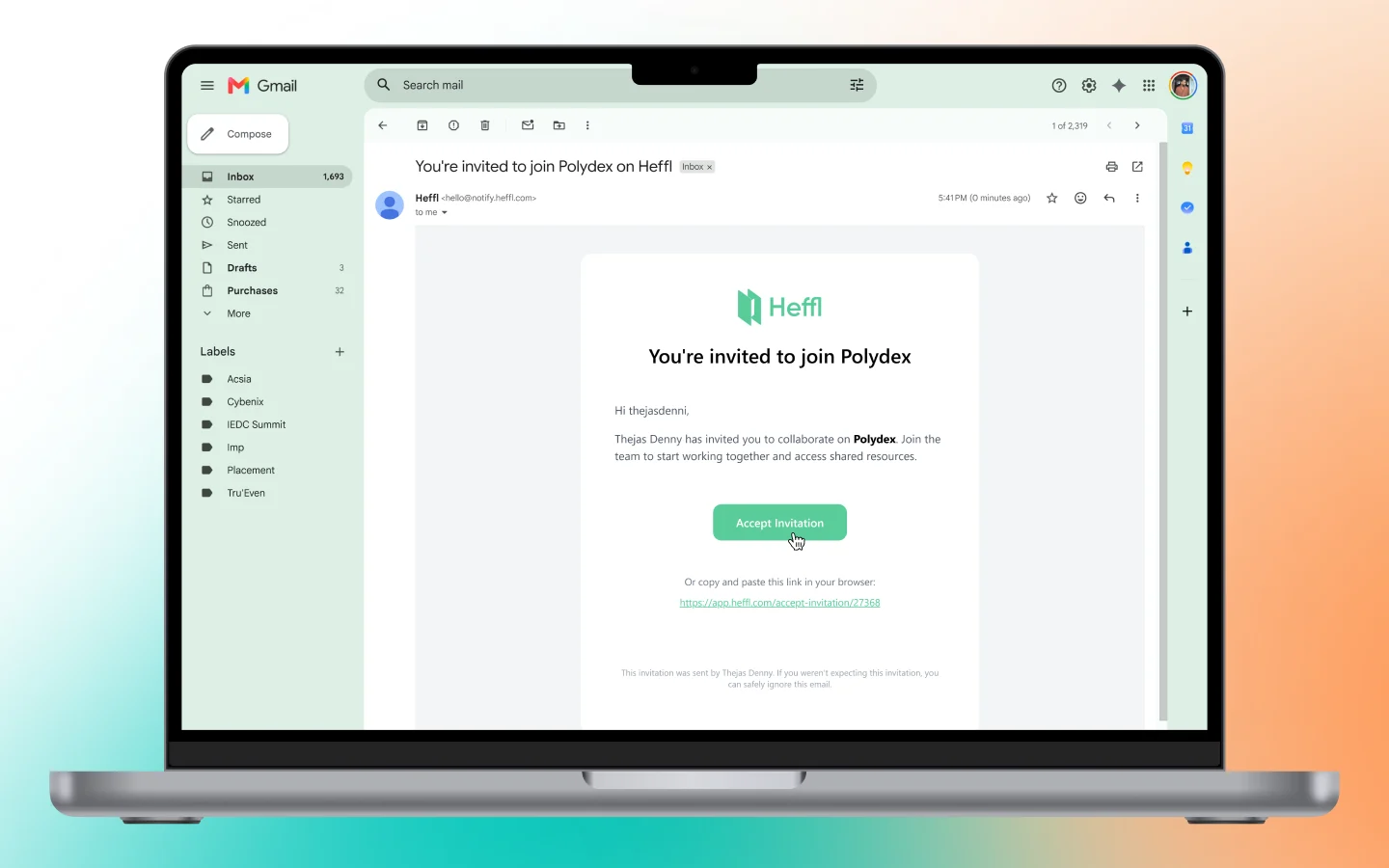
Look for an invitation email from Heffl. It contains a signup link with your email address pre-filled.
### **Step 3: Select your timezone**
Heffl automatically detects your timezone. Change it if needed to ensure dates and times display correctly across your workspace.
### **Step 4: Submit the form**
Click "Sign up". Heffl will create your account, send a verification email, and log you in automatically.
***
## Joining via team invitation
### **Step 1: Check your email**
Look for an invitation email from Heffl. It contains a signup link with your email address pre-filled.
 ### **Step 2: Click the invitation link**
The link takes you to the signup page with your email already entered. Add your name and create a password.
### **Step 3: Complete signup**
Submit the form. Heffl will create your account, add you to the team automatically, and take you to your new workspace.
***
## Logging in with email and password
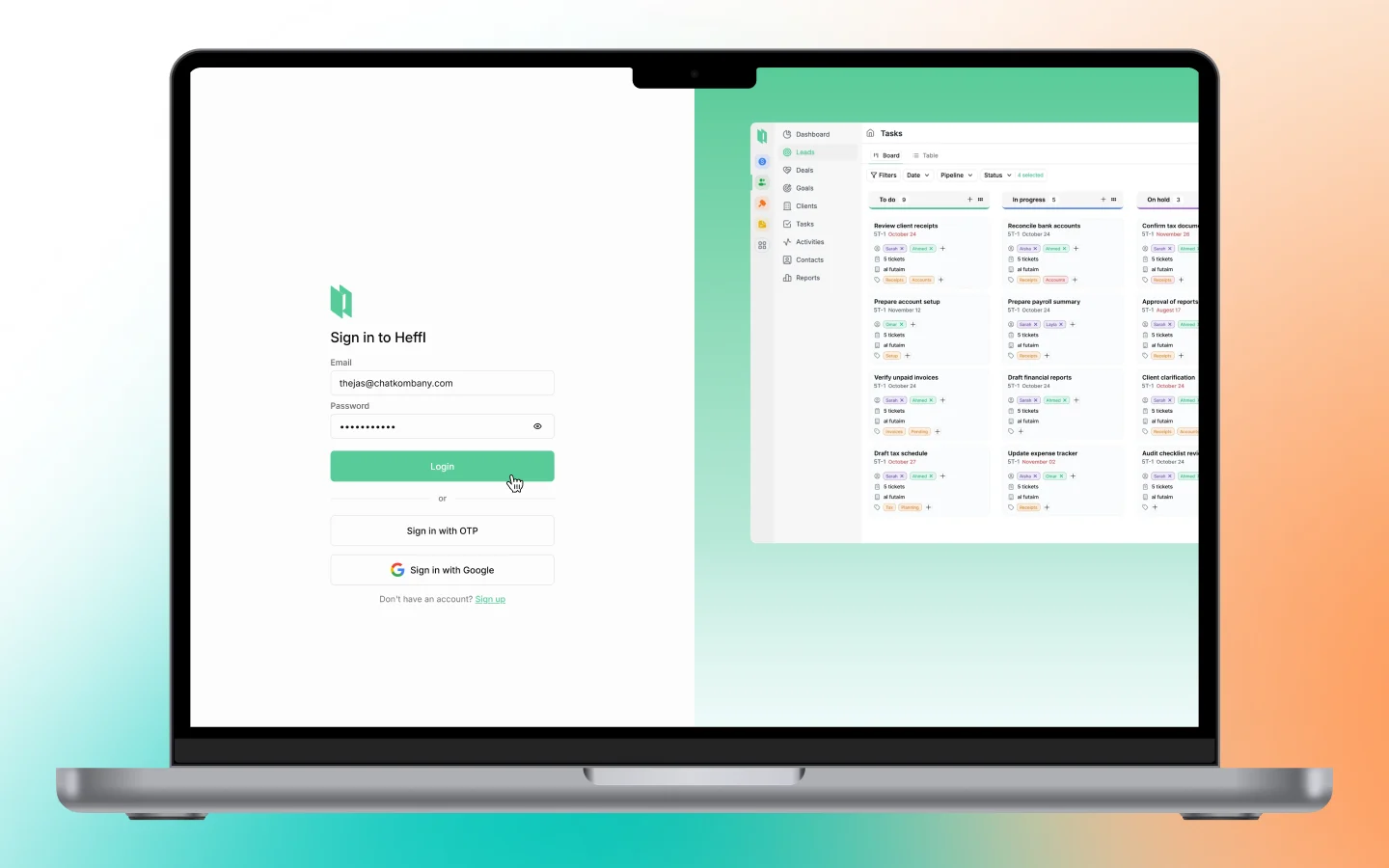
1. Go to [app.heffl.com/login](https://app.heffl.com/login)
2. Enter your email address
3. Enter your password
4. Click "Login"
### **Step 2: Click the invitation link**
The link takes you to the signup page with your email already entered. Add your name and create a password.
### **Step 3: Complete signup**
Submit the form. Heffl will create your account, add you to the team automatically, and take you to your new workspace.
***
## Logging in with email and password
1. Go to [app.heffl.com/login](https://app.heffl.com/login)
2. Enter your email address
3. Enter your password
4. Click "Login"
 ***
## OTP login (passwordless)
### **Step 1: Choose OTP login**
On the login page, select the OTP option instead of entering your password.
***
## OTP login (passwordless)
### **Step 1: Choose OTP login**
On the login page, select the OTP option instead of entering your password.
 ### **Step 2: Enter your email**
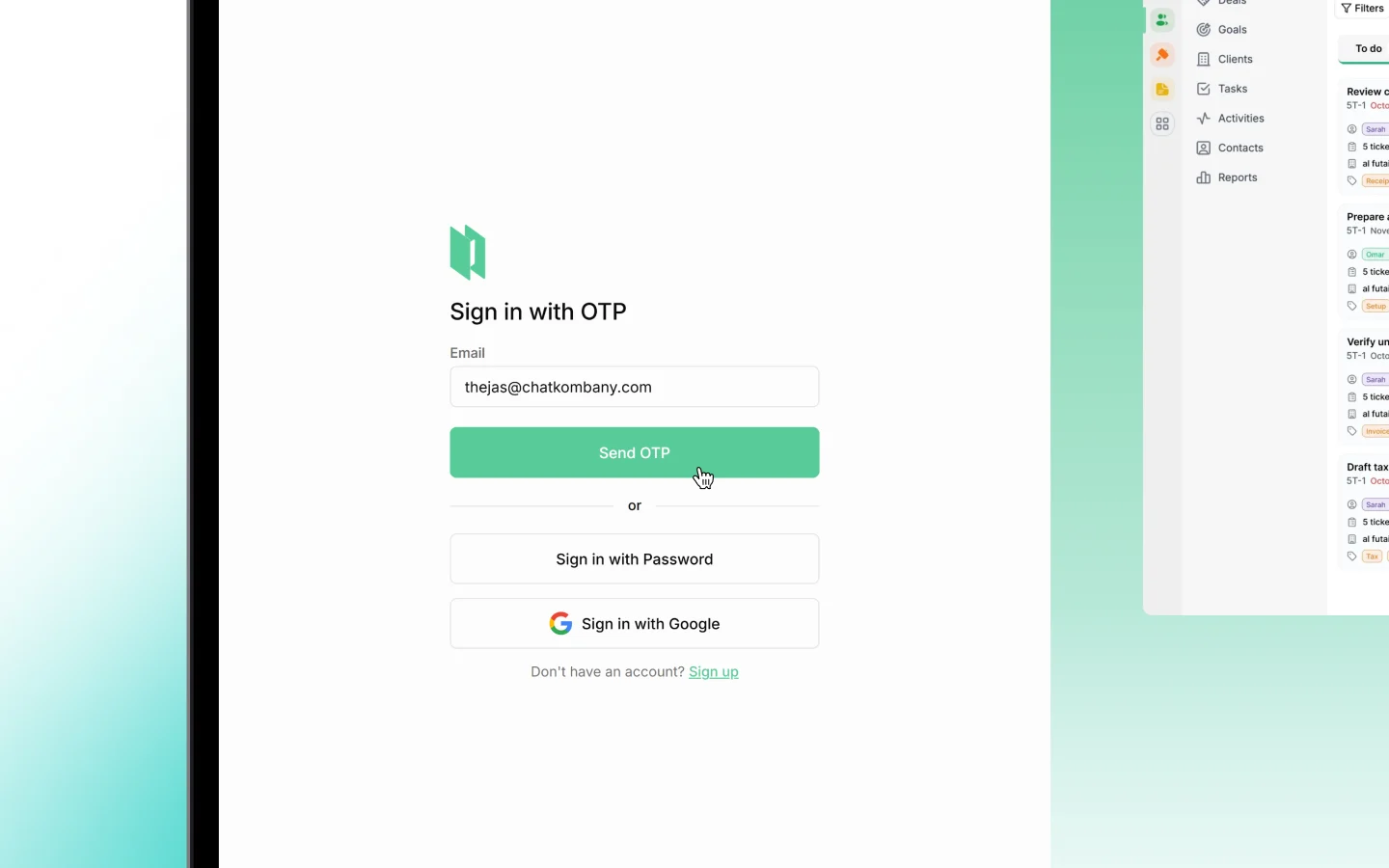
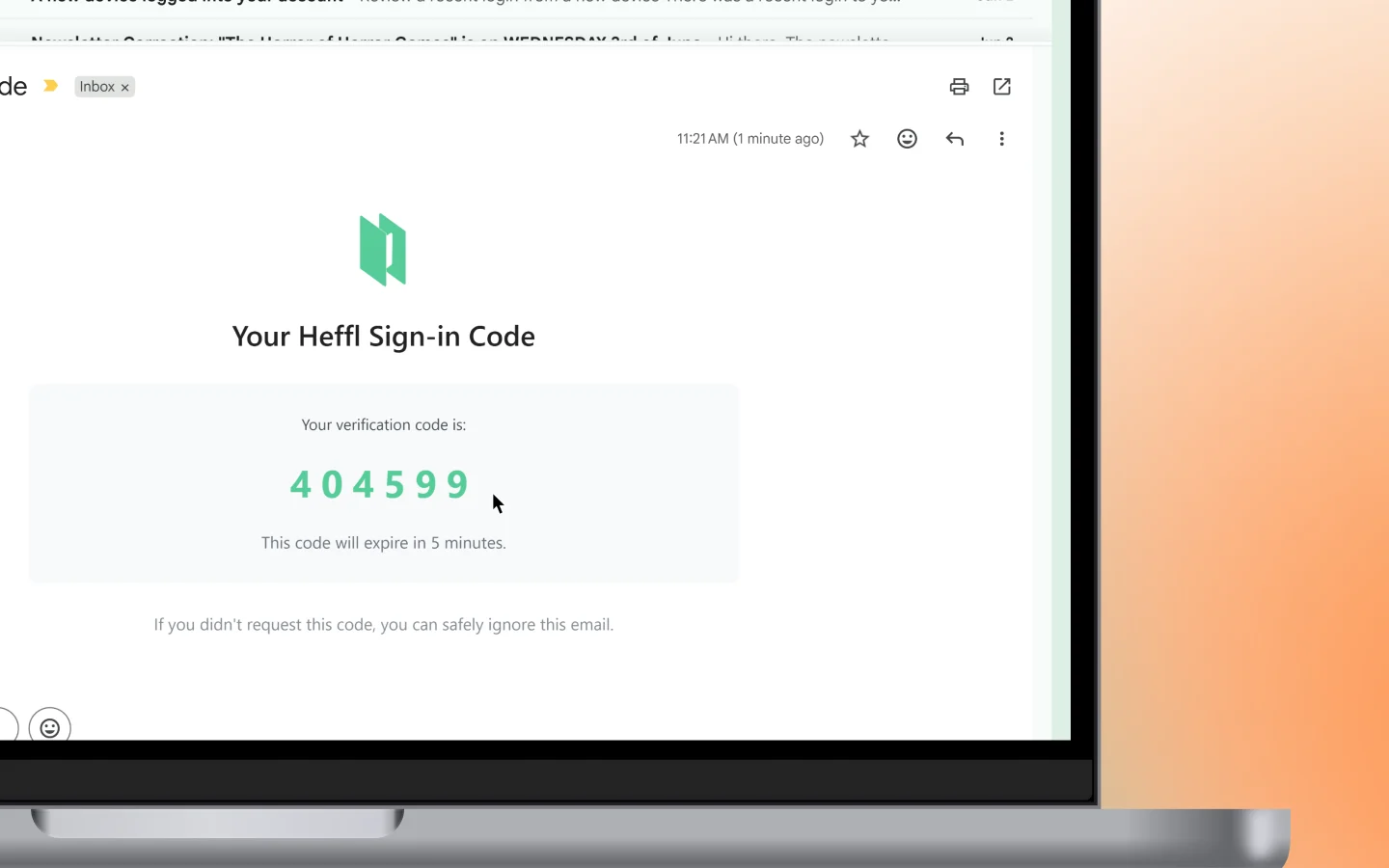
Type your email address and click "Send OTP". A 6-digit code will be sent to your inbox.
### **Step 2: Enter your email**
Type your email address and click "Send OTP". A 6-digit code will be sent to your inbox.
 ### **Step 3: Enter the code**
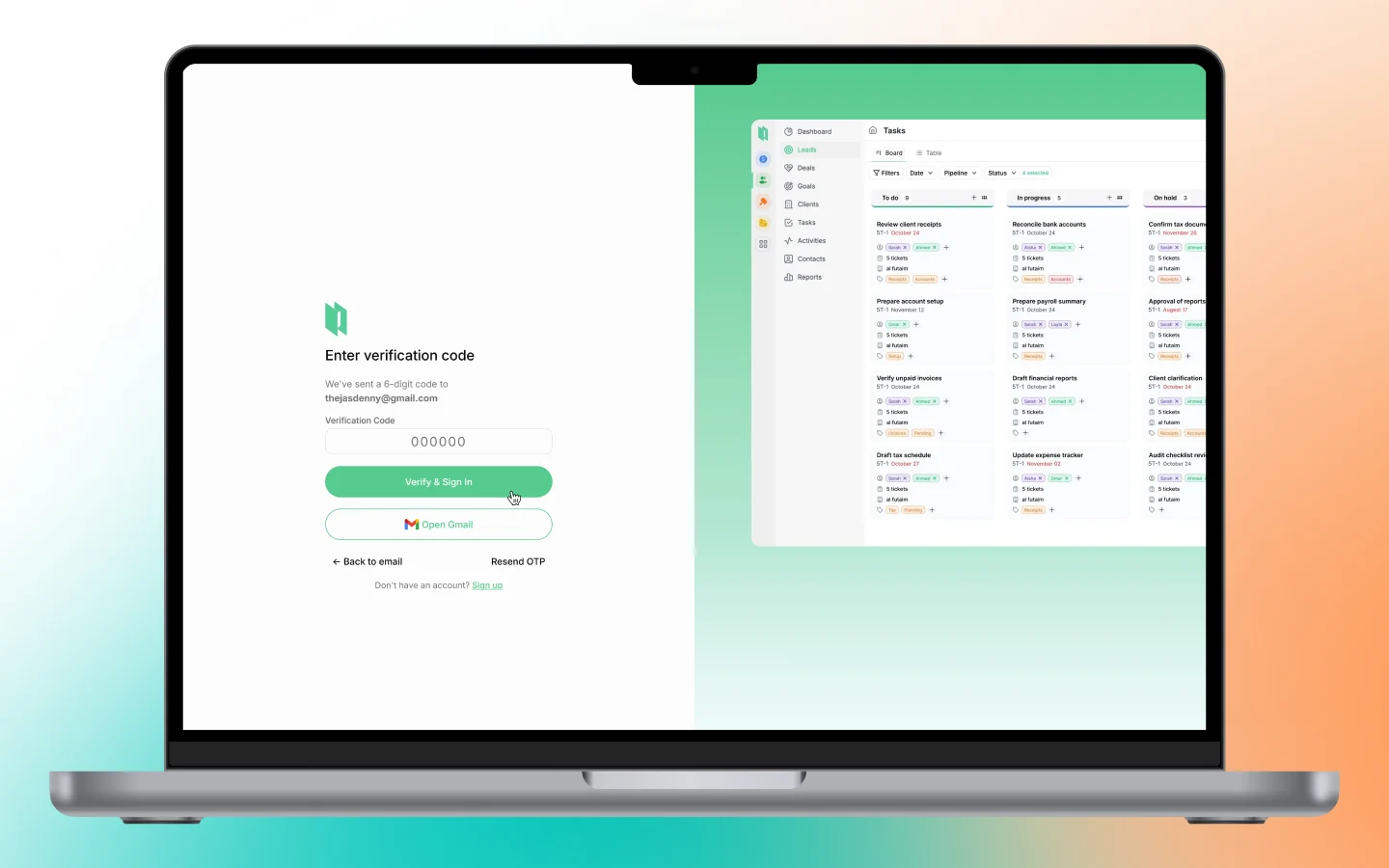
Return to Heffl, enter the 6-digit code, and click "Verify" to log in. Codes expire after a few minutes, so enter it promptly.
### **Step 3: Enter the code**
Return to Heffl, enter the 6-digit code, and click "Verify" to log in. Codes expire after a few minutes, so enter it promptly.
 ***
## Email verification
After signing up with email and password, you may need to verify your email before accessing all features.
### **Step 1: Check your inbox**
Look for a verification email from Heffl. It arrives within a few minutes of signup.
### **Step 2: Click the verification link**
Click the link in the email to confirm your address.
### **Step 3: Access your account**
Once verified, log in to access all Heffl features.
***
## Switching between workspaces
If you are a member of more than one Heffl workspace (for example, as a consultant or team member across multiple businesses):
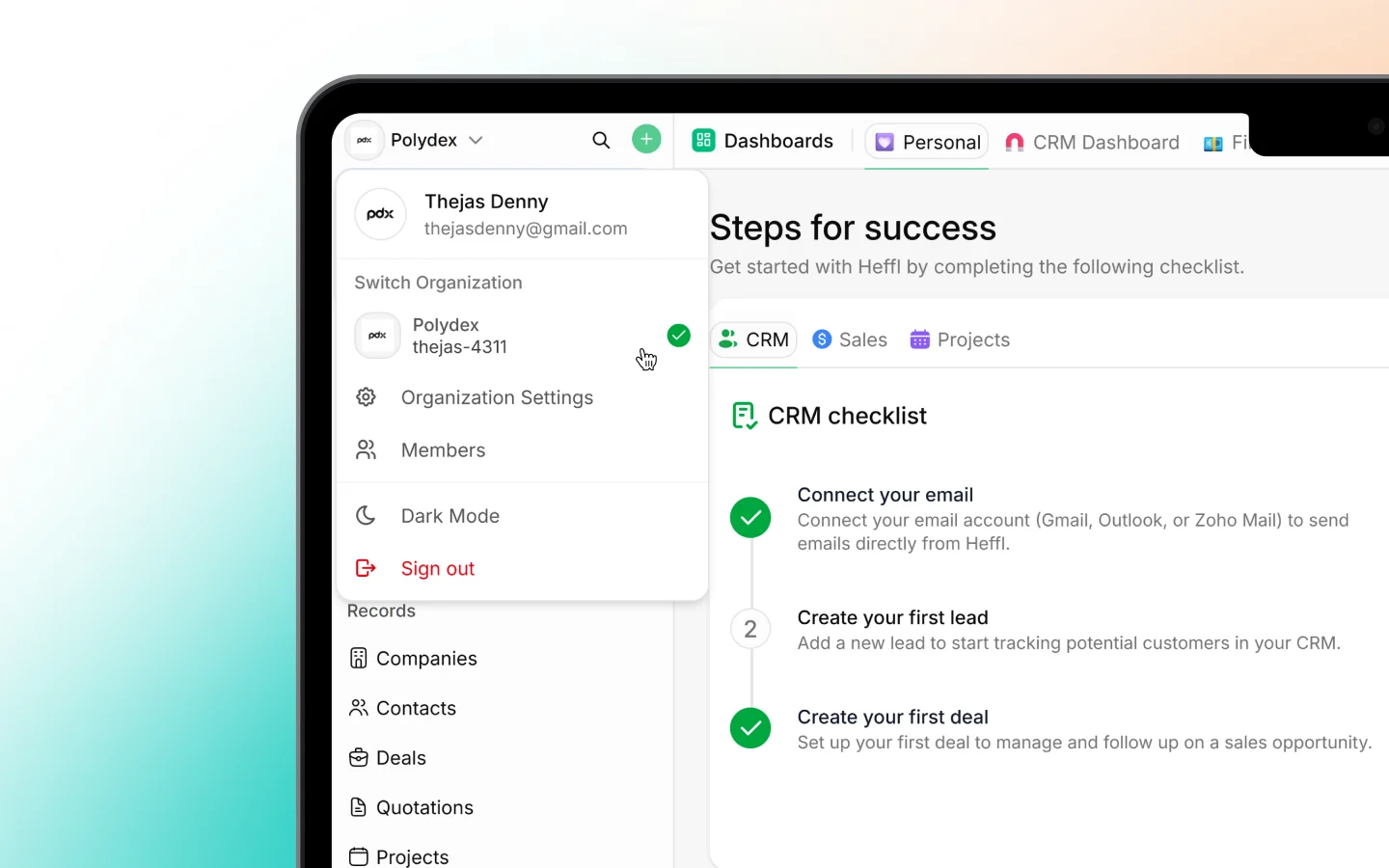
1. Click your profile icon in the top right corner
2. Select "Switch workspace"
3. Choose the workspace you want to open
Each workspace has its own data, settings, and team members. Switching does not log you out.
***
## Email verification
After signing up with email and password, you may need to verify your email before accessing all features.
### **Step 1: Check your inbox**
Look for a verification email from Heffl. It arrives within a few minutes of signup.
### **Step 2: Click the verification link**
Click the link in the email to confirm your address.
### **Step 3: Access your account**
Once verified, log in to access all Heffl features.
***
## Switching between workspaces
If you are a member of more than one Heffl workspace (for example, as a consultant or team member across multiple businesses):
1. Click your profile icon in the top right corner
2. Select "Switch workspace"
3. Choose the workspace you want to open
Each workspace has its own data, settings, and team members. Switching does not log you out.
 ***
## Mobile login
Heffl is available on iOS and Android.
1. Download the Heffl app from the [App Store](https://apps.apple.com/us/app/heffl/id6478108057)
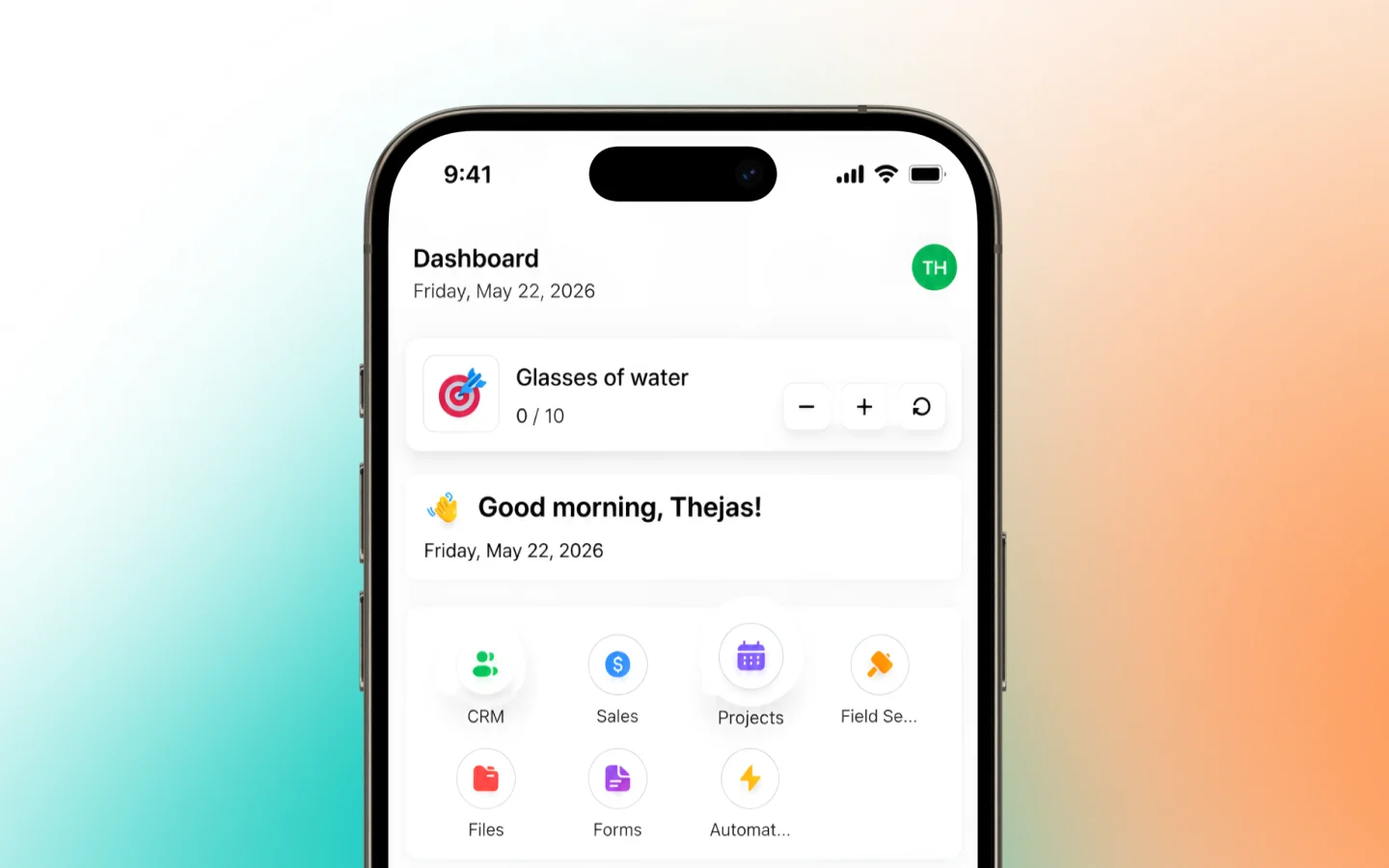
2. Open the app and tap "Log in"
3. Enter your email and password, or use OTP login
4. Tap "Sign in" to access your workspace
All your data syncs automatically between the mobile app and the web version.
***
## Mobile login
Heffl is available on iOS and Android.
1. Download the Heffl app from the [App Store](https://apps.apple.com/us/app/heffl/id6478108057)
2. Open the app and tap "Log in"
3. Enter your email and password, or use OTP login
4. Tap "Sign in" to access your workspace
All your data syncs automatically between the mobile app and the web version.
 ***
## Signing out
### **From your current device**
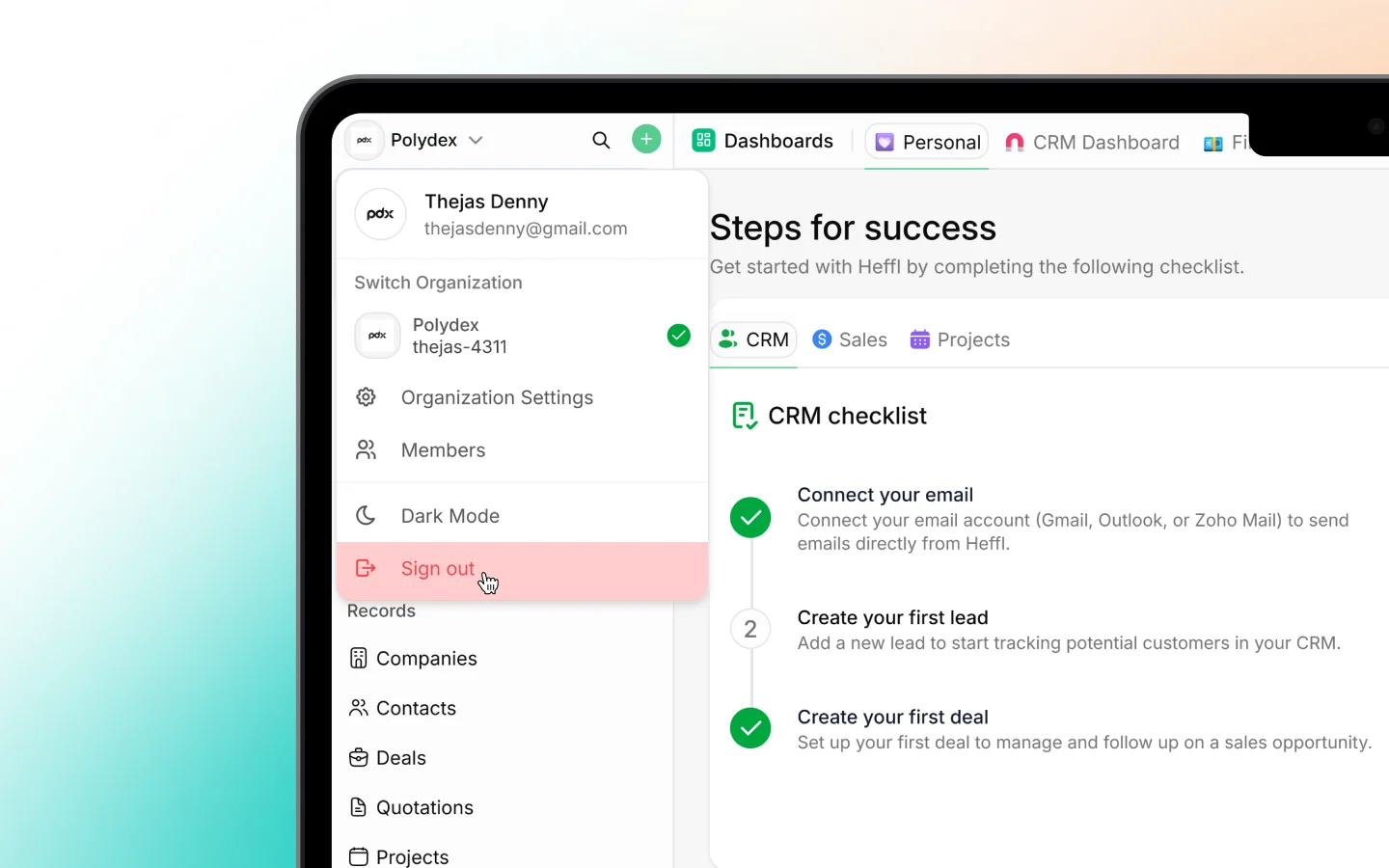
Click your profile icon in the top right corner and select "Sign out".
***
## Signing out
### **From your current device**
Click your profile icon in the top right corner and select "Sign out".
 ***
## Session timeout
Heffl keeps you logged in for 30 days on trusted devices. After 30 days of inactivity, you will be asked to log in again. If you are logged out unexpectedly, check your internet connection or clear your browser cache and try again.
***
## Troubleshooting
### **Verification email not received**
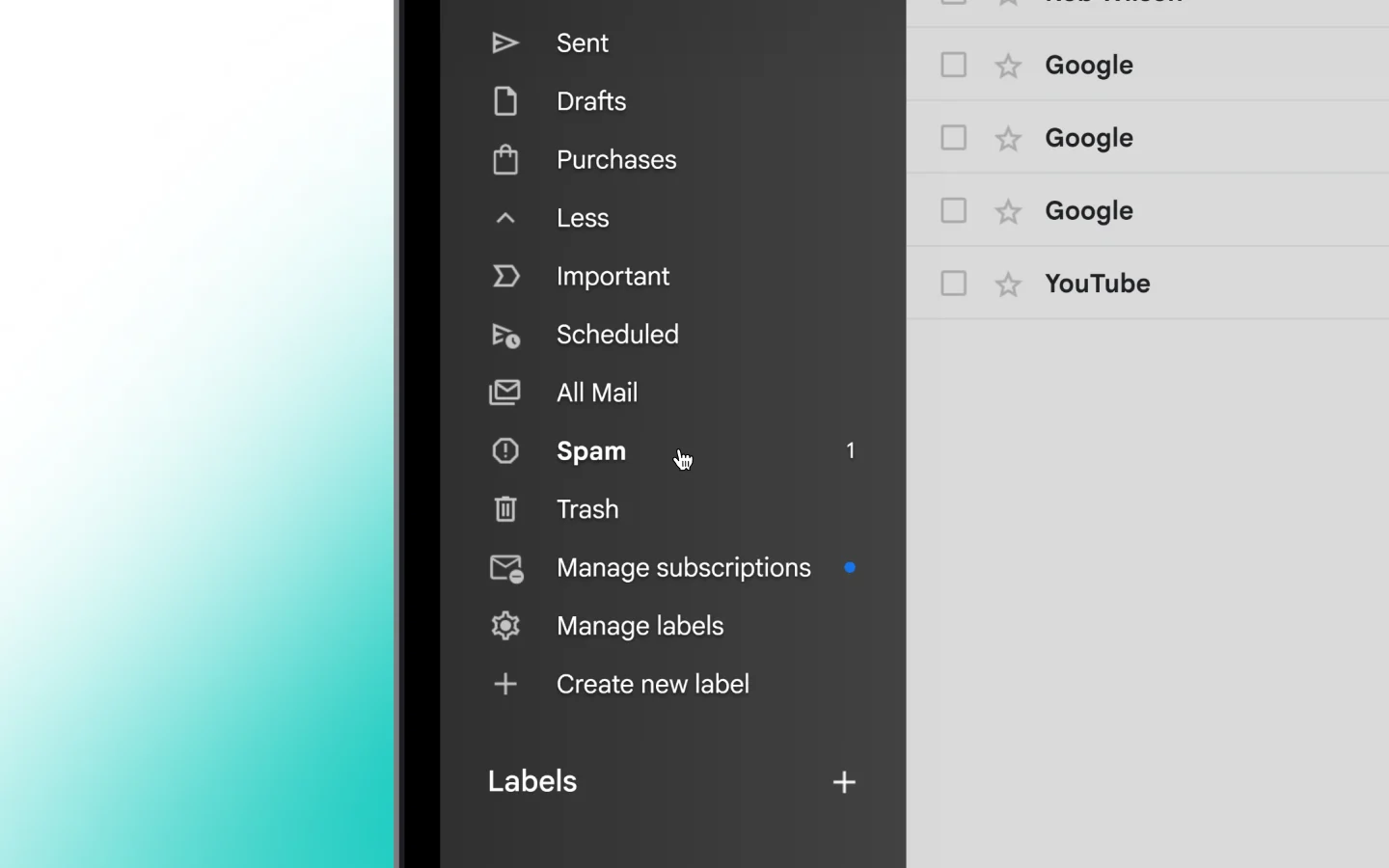
* Check your spam or junk folder
* Confirm you entered the correct email address
* Request a new verification email from the login page
***
## Session timeout
Heffl keeps you logged in for 30 days on trusted devices. After 30 days of inactivity, you will be asked to log in again. If you are logged out unexpectedly, check your internet connection or clear your browser cache and try again.
***
## Troubleshooting
### **Verification email not received**
* Check your spam or junk folder
* Confirm you entered the correct email address
* Request a new verification email from the login page
 ### **Forgot your password**
Click "Sign in using OTP" on the login page. Heffl will send an OTP to your email.
### **Invitation link not working**
* Check if you already have a Heffl account with that email address
* Ask your team admin to resend the invitation
* If the issue persists, create an account first and ask the admin to add you manually
***
## What happens after login
### **First-time users**
Heffl walks you through a quick onboarding process:
1. Set up your company details
2. Choose which modules or apps you need
3. Invite team members (optional)
See the [Workspace setup guide](https://docs.heffl.com/getting-started/untitled-page-1) to learn more.
### **Returning users**
If you've already completed onboarding, you'll land on your Heffl dashboard ready to work.
### **Forgot your password**
Click "Sign in using OTP" on the login page. Heffl will send an OTP to your email.
### **Invitation link not working**
* Check if you already have a Heffl account with that email address
* Ask your team admin to resend the invitation
* If the issue persists, create an account first and ask the admin to add you manually
***
## What happens after login
### **First-time users**
Heffl walks you through a quick onboarding process:
1. Set up your company details
2. Choose which modules or apps you need
3. Invite team members (optional)
See the [Workspace setup guide](https://docs.heffl.com/getting-started/untitled-page-1) to learn more.
### **Returning users**
If you've already completed onboarding, you'll land on your Heffl dashboard ready to work.