

Finding your settings
Open Settings from the sidebar. The menu is split into two groups:- Personal: settings that affect only you (Account Settings and Notifications)
- Organization: settings that affect the whole workspace (covered in Workspace and organization settings)
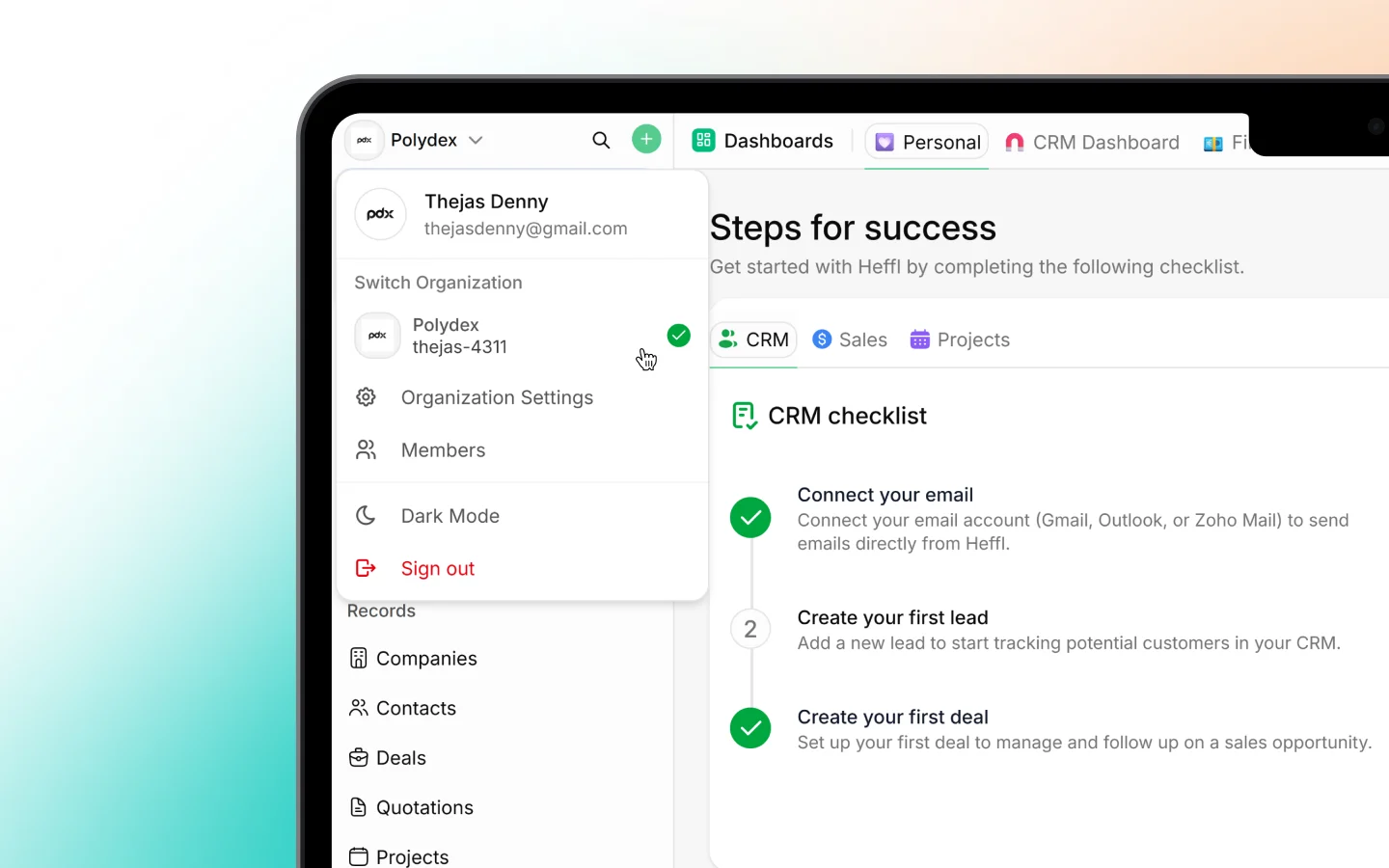
Your profile
Under Account Settings, update the details that identify you across the workspace:- Name, shown on records, activity, and assignments
- Email, your login and where notifications are sent
- Profile photo, the avatar teammates see next to your actions
- Phone, your contact number
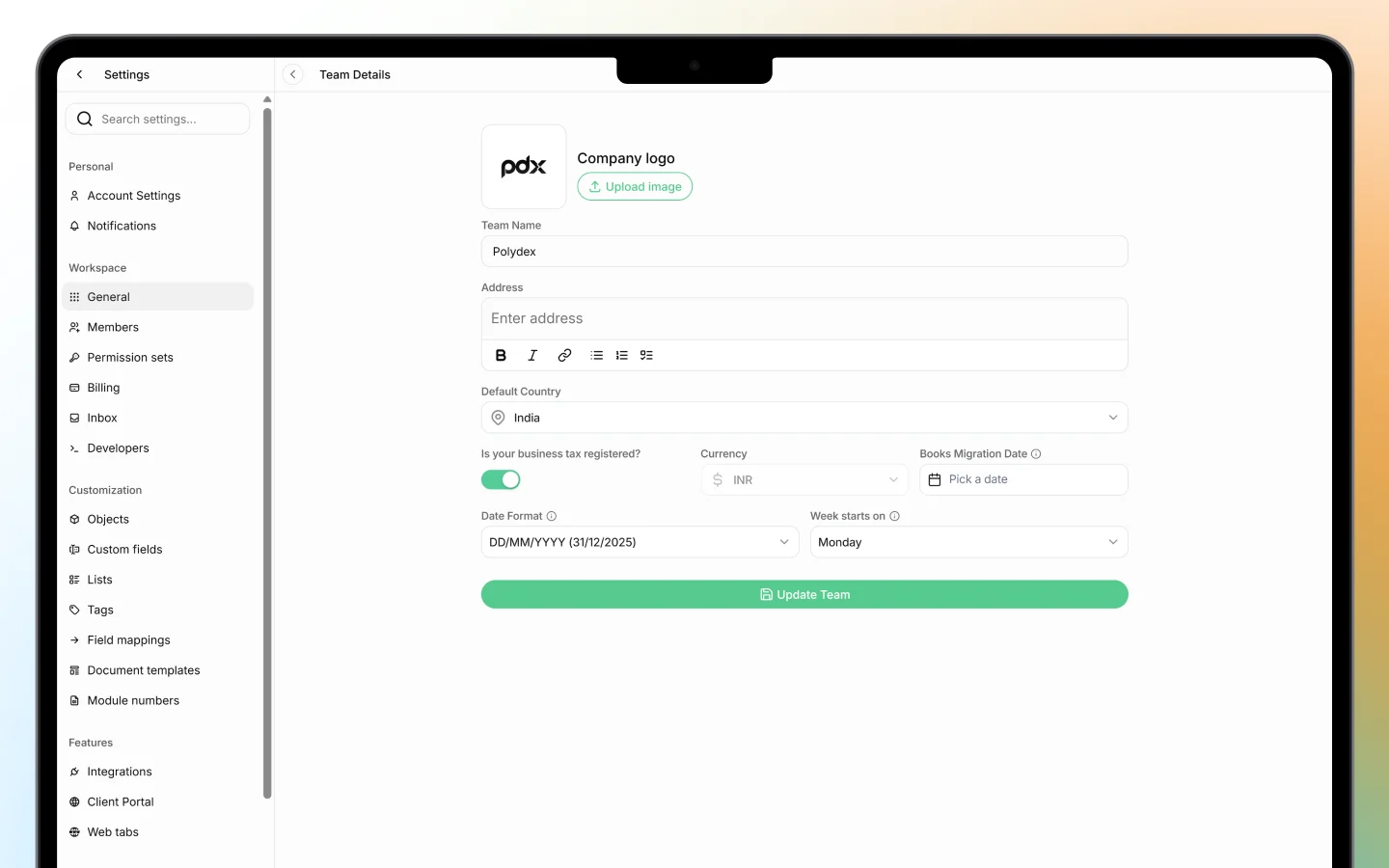
Language and timezone
Set your regional preferences so dates, times, and the interface suit you:- Timezone, ensures meetings, due dates, and timestamps display in your local time. Heffl detects this at signup, but you can change it here.
- Language, the interface language, if multiple are available
Changing your password
To update your password:- Open Account Settings
- Find the password or security option
- Enter your current password, then your new one
- Save
Personal preferences
Account Settings also holds preferences that shape your own experience of Heffl, such as display options and defaults. These apply only to your account and do not change anything for your teammates.Personal versus organization settings
It helps to know the difference:- Personal settings (Account Settings, Notifications) affect only you
- Organization settings (Organization, CRM, Sales, Integrations, and the rest) affect the whole workspace and usually require admin or owner access
What to do next
- Set your notification preferences
- Review workspace and organization settings if you are an admin
- Confirm your timezone so dates and schedules display correctly