

Before you begin
Have these ready:- Your company name and logo
- Your bank details or a Stripe account (for payments)
- One client’s name and email to test with
Step 1: Add your company details (1 minute)
Go to Settings > Organization > General and enter your company name, logo, address, and default currency. These appear on every document you send, so this matters most.Step 2: Turn on the modules you need (30 seconds)
Go to Settings > Organization > Permission Set and enable what fits your business. If unsure, start with CRM + Sales. You can add more later.Step 3: Add your first lead (1 minute)
Go to Records > Leads and click +Lead. Enter their name and email. This is the client you will send a test quote to.Step 4: Create and send a quote (2 minutes)
- Go to Records > Quotations and click +Quotation or press “C”
- Select the client you just added
- Add a product or type a line item with a price
- Click Send
Step 5: Explore your dashboard (30 seconds)
Return to Home. Your dashboard shows tasks, meetings, and quick access to every module.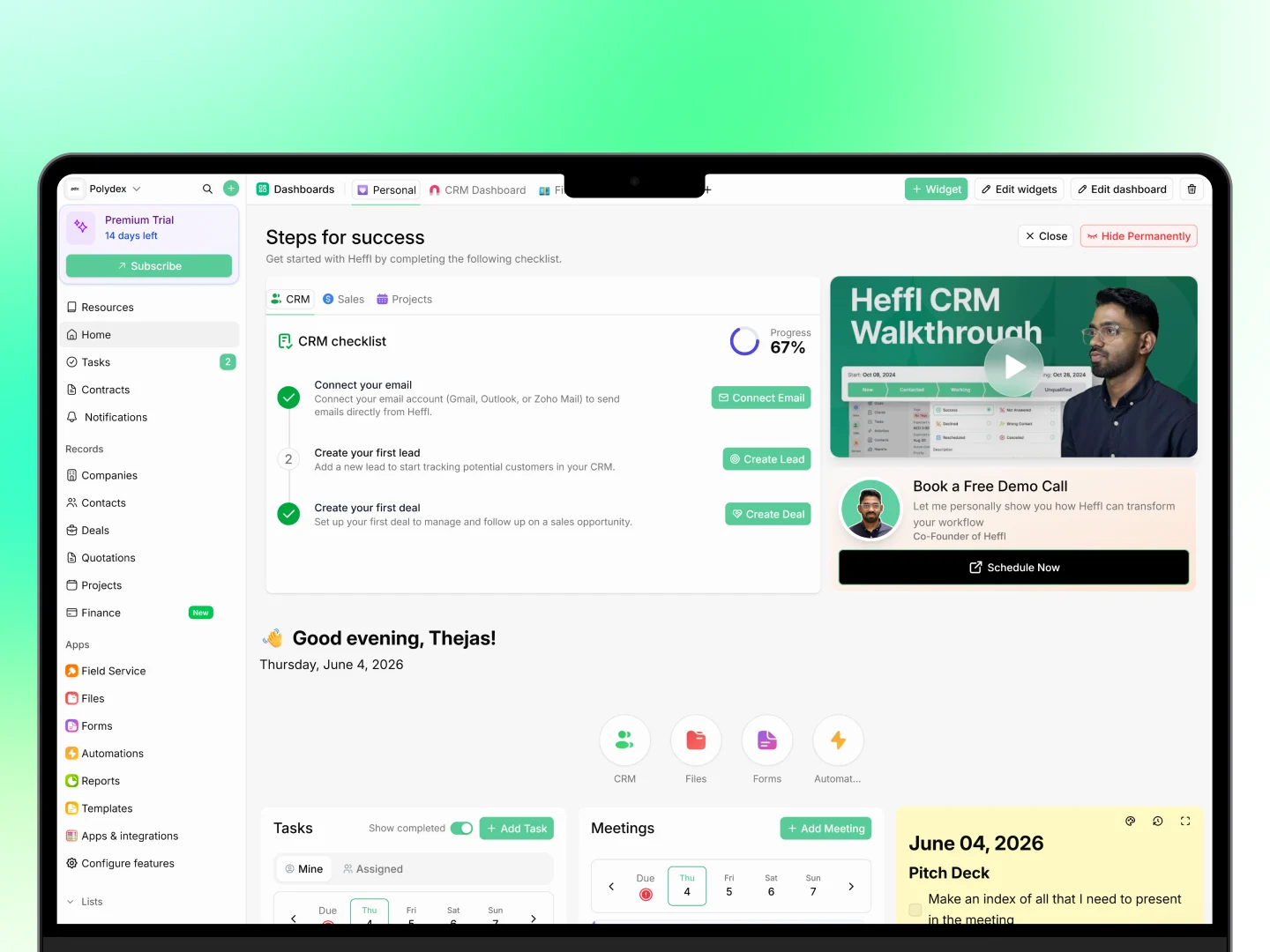
What to do next
You are set up. From here:- Invite your team so others can help. See Inviting your team members.
- Connect your email to send documents from your own address. Go to Settings > Organization > Integrations.
- Set up payments so clients can pay online. Connect Stripe or add bank details under Settings > Organization > Payment Methods.
- Explore your modules from the sidebar to match Heffl to your full workflow.