

Before you start
Prepare your file:
- Use a spreadsheet file (CSV or Excel)
- Put each lead on its own row
- Include a header row with column titles such as Name, Mobile, and Email
- At minimum, every lead needs a Name. All other fields are optional.
Step 1: Upload your file
- Go to Leads in the sidebar
- Click Import in the top right
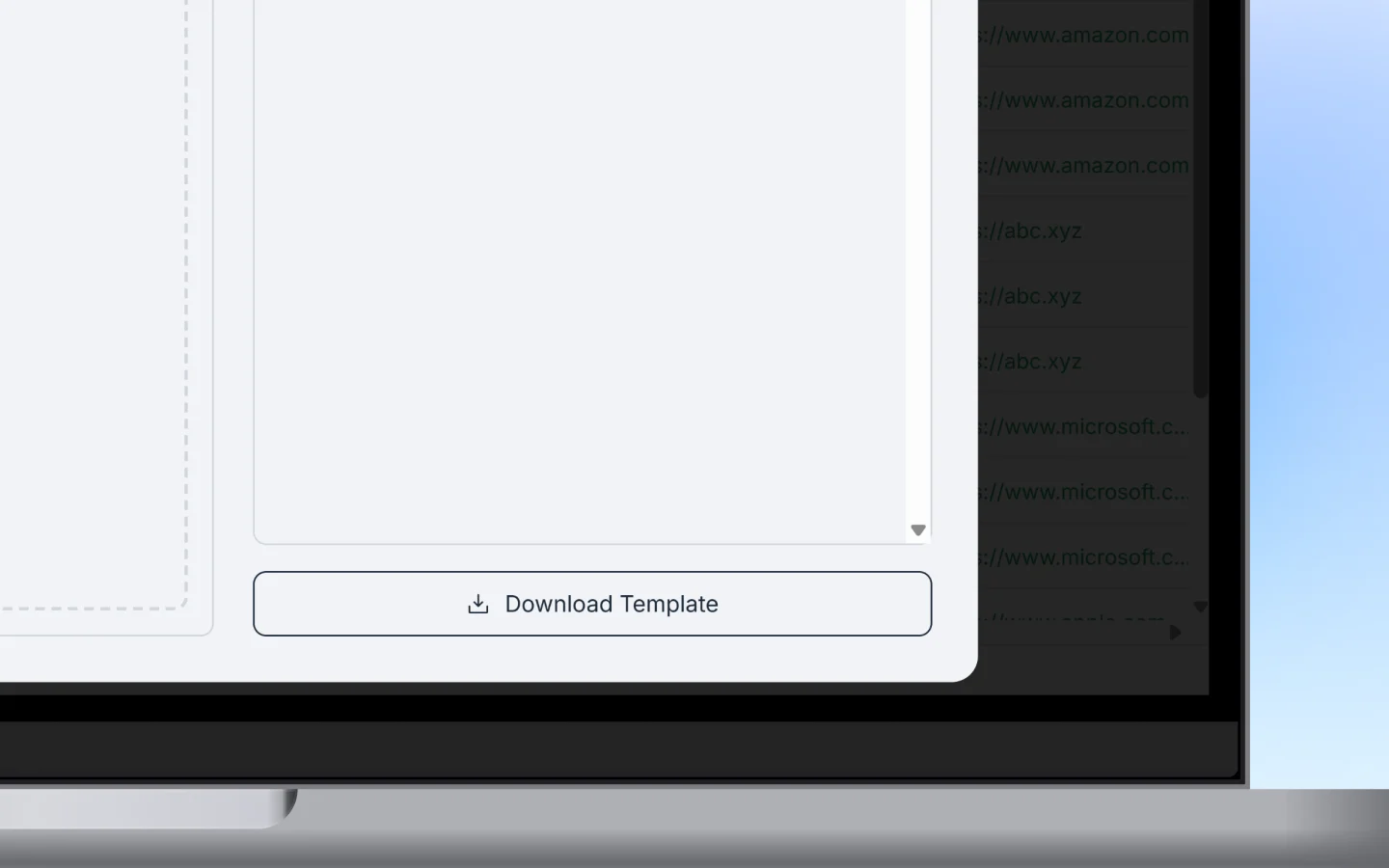
- Drop your file into the upload area, or click Browse files to select it
Step 2: Select the header row
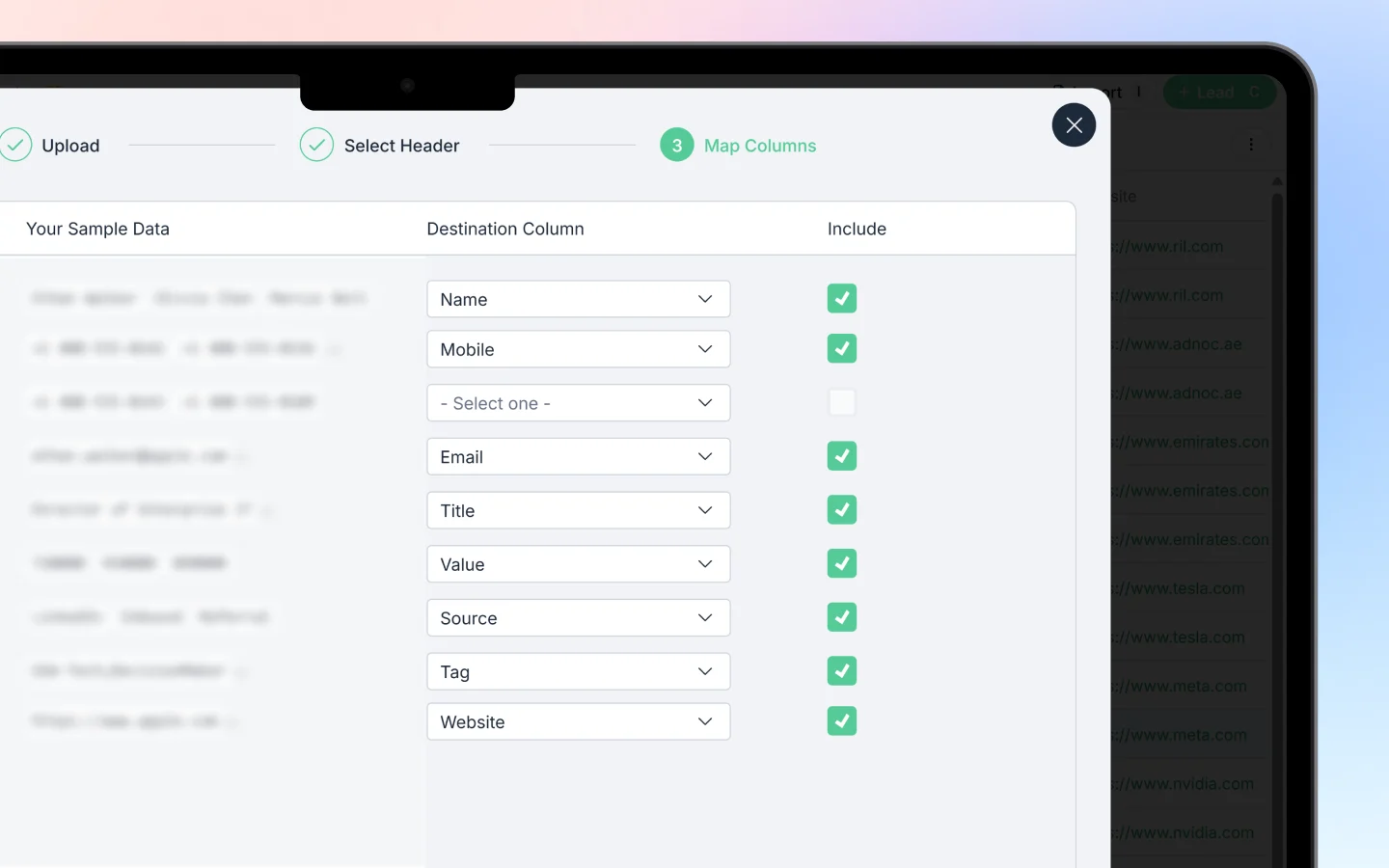
Tell Heffl which row in your file contains the column titles. This is usually the first row. Heffl uses this row to understand what each column means, so the next step can match your columns to the right fields.Step 3: Map columns
Match each column in your file to the matching Heffl field.- Heffl auto-matches columns where the names are obvious (for example, a “Name” column maps to Name)
- Review each mapping and correct any that are wrong
- Leave a column unmapped if you do not want to import it
- Make sure your Name column is mapped, since it is required
After importing
Once the import finishes:- Your new leads appear in the Leads list
- Each lead enters at the default first stage (New)
- You can filter, tag, and assign them like any other lead
Troubleshooting
Some rows did not import Check that every row has a Name. Rows without a name are skipped. Data landed in the wrong field Your column mapping was likely off. Re-import and check each mapping in Step 3 against the expected columns. The file would not upload Confirm it is a supported format (CSV or Excel) and that it has a header row. Download the template and copy your data into it if problems continue.What to do next
After importing your leads:- Filter and sort to organize the new batch
- Add tags to group them
- Start converting qualified leads into deals