

Adding a note
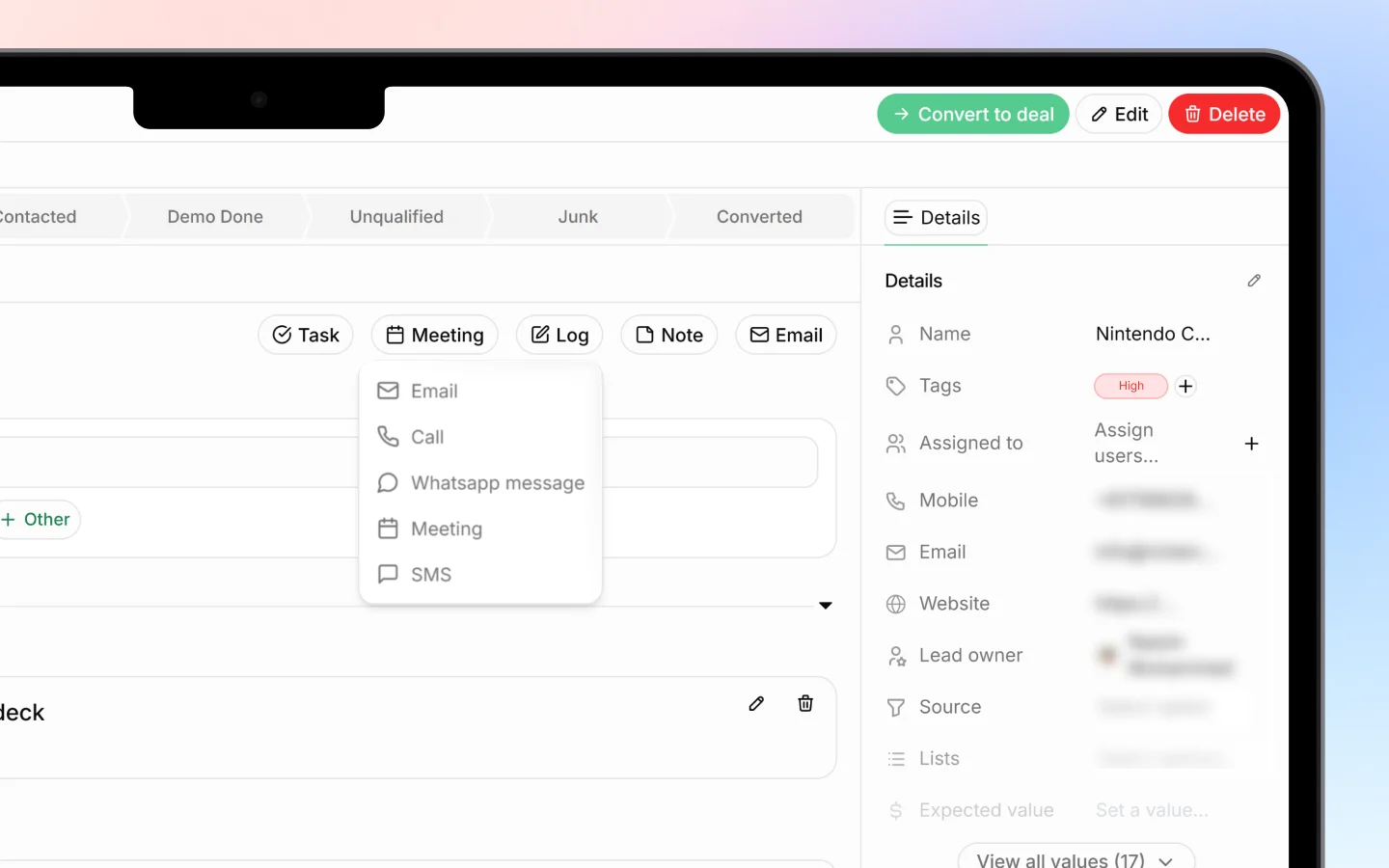
Notes capture conversations, agreements, and reminders attached to a specific lead. From the list view Click Add Note in the Notes column of any lead row, type your note, and save. The note attaches to that lead.From the lead detail view
- Open the lead by clicking its row
- In the Activity area, click Note
- Type your note
- Save
Logging other activity
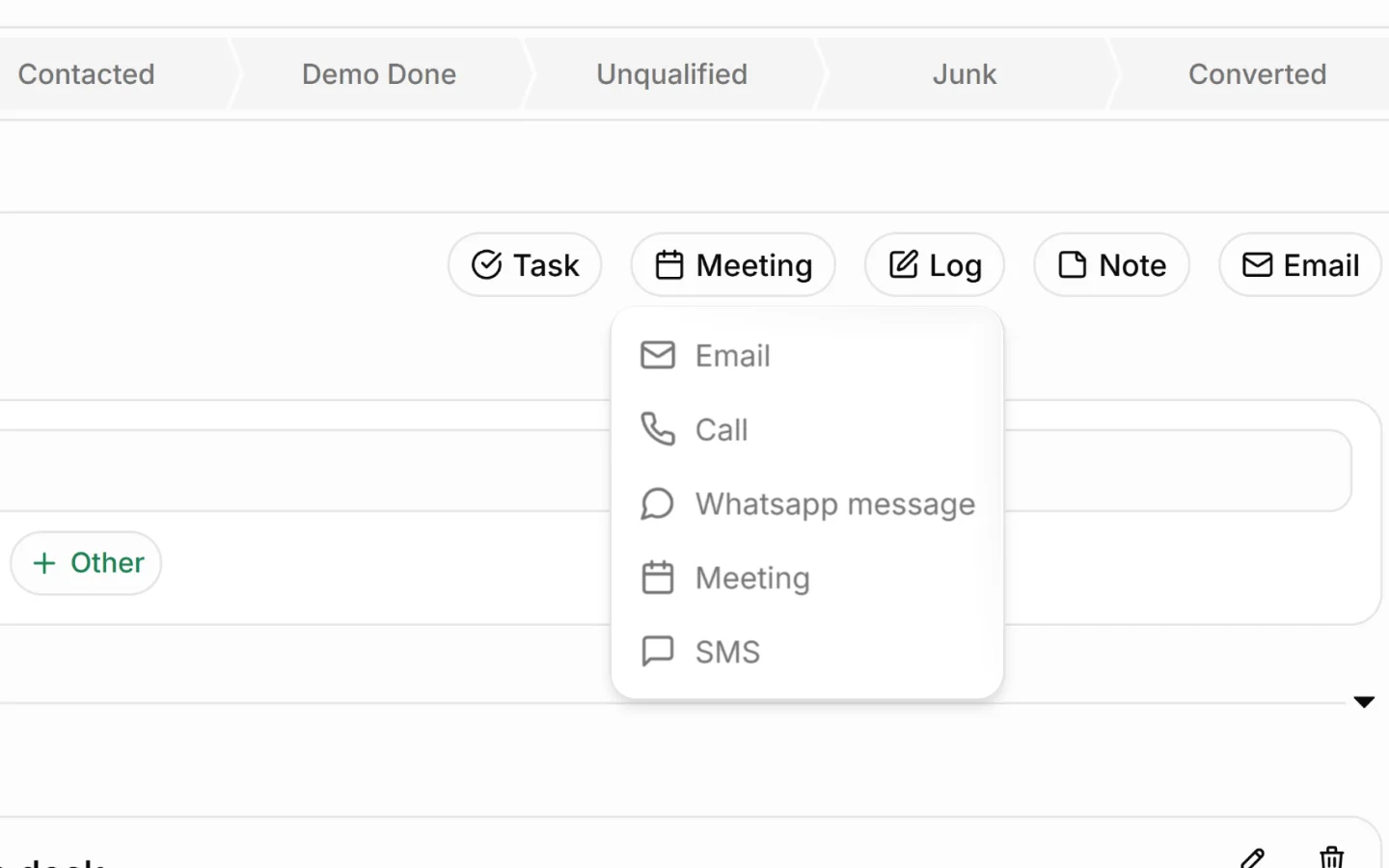
Alongside notes, the lead detail view lets you log other interactions from the same row of buttons:- Log records a call or general interaction
- Note adds a written note
- Meeting schedules or records a meeting
- Email logs an email
Adding a tag
Tags are labels you attach to leads to group them, such as VIP, Technical service, or any label that fits your workflow. From the list view In the Tags column, click the + on any lead row and choose or create a tag. To remove a tag, click the x next to it.From the lead detail view
- Open the lead
- Find the Tags field in the Details panel on the right
- Click to add a tag, or remove one with the x
Why tags are useful
Tags become powerful when combined with filtering. Once leads are tagged, you can:- Filter the lead list to show only a certain tag
- Group similar leads regardless of their stage
- Spot patterns, such as all your VIP or high-priority leads
Notes versus tags
Use each for its purpose:- Notes hold detail and history, the things you need to read
- Tags hold classification, the things you need to filter by
What to do next
- Filter your leads by tag to put your tags to work
- Convert qualified leads into deals, carrying their history forward
- Set up custom fields to capture structured lead data beyond notes and tags