

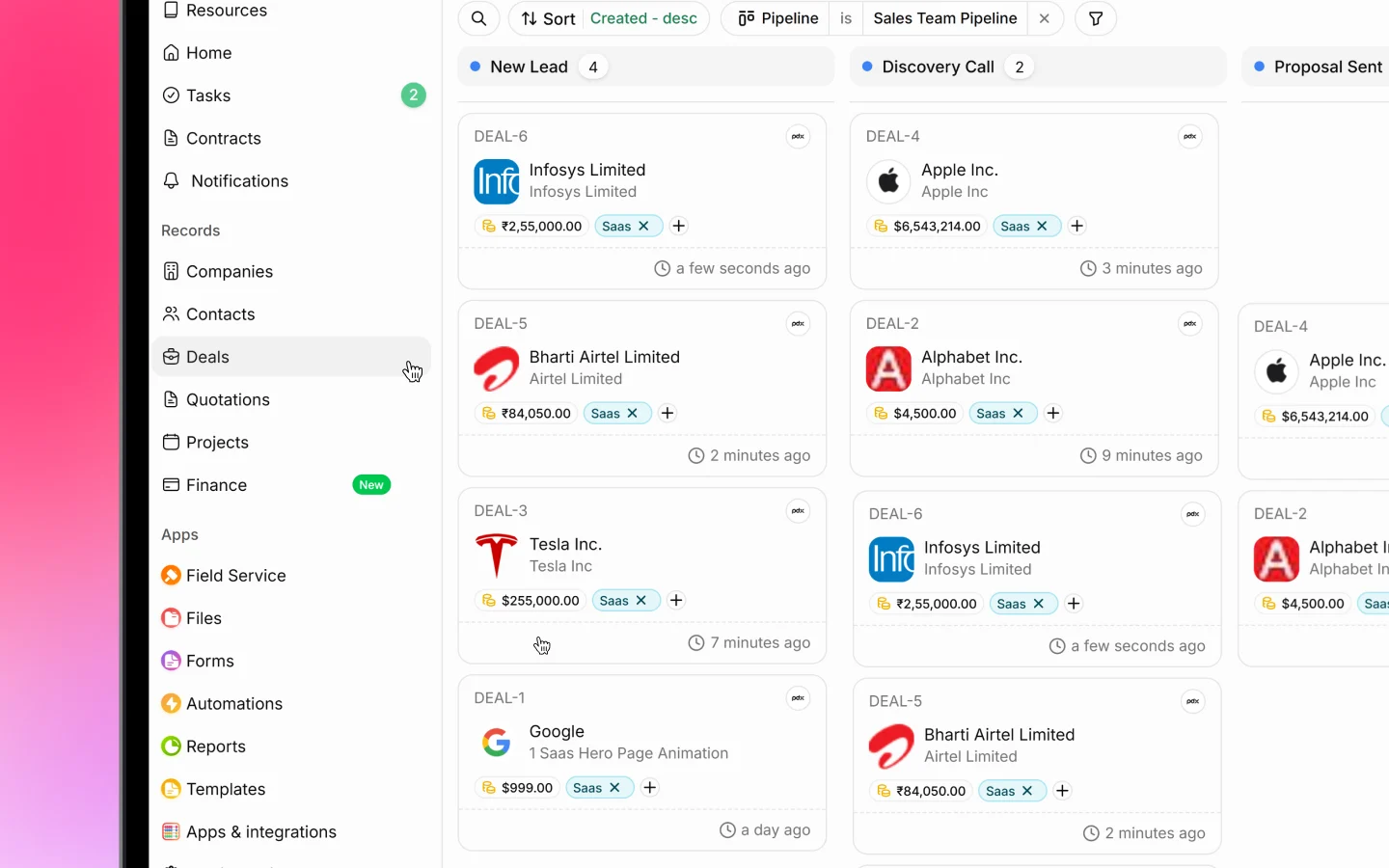
Pipelines
Unlike leads, deals are split into separate pipelines, one per line of business. Your workspace has pipelines such as Cleaning, Machine, Software sales, Real estate, and Accounting. Each pipeline has its own stages suited to that kind of sale. You will find your pipelines listed under Deals in the sidebar. Click one to see only the deals in it, or use All Deals to see everything.Adding a deal
- Go to Deals in the sidebar
- Click + Deal in the top right (or press C)
- Choose the Company or contact the deal is for (select an existing client or add a new one)
- Select the Pipeline the deal belongs to
- Fill in the other details as needed:
- Source and Vendor
- Tags
- Assigned to and Owner
- Any custom fields
- Click Add deal (or press Ctrl + Enter)
Viewing deals
The Deals page offers two views, switchable from the tabs at the top:- All shows deals as a Kanban board grouped by status
- Table shows deals in a list
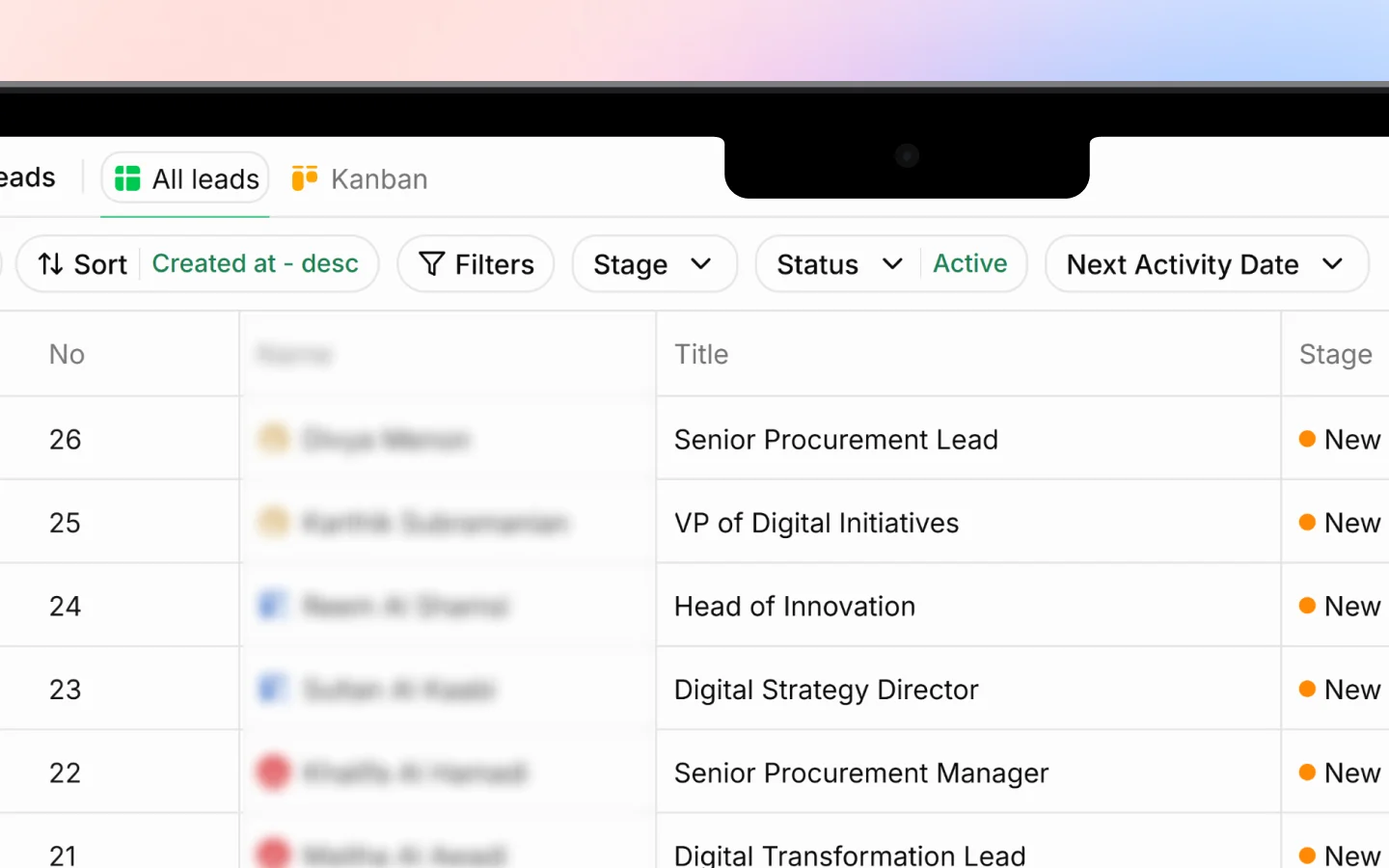
The deal detail view
Click any deal to open it. Across the top is the pipeline’s stage bar, showing the deal’s progress through stages such as Qualified, Site visit, Quotation prepared, Won, Contract signed, and Lost. The detail view has tabs for Activity, Quotations, Documents, Products, Files, Overview, and Forms. The Details panel on the right shows the client, title, tags, expected value, expected and actual close dates, assignees, owner, source, and linked lead. The Contacts section lets you associate the specific people involved in the deal. See Linking contacts to companies and deals.Moving a deal through stages
Move a deal forward as the opportunity progresses:- On the board, drag a card between status columns (Active, Won, Lost)
- In the deal detail view, click a stage in the stage bar to set it
Editing and converting a deal
Open a deal and click Edit to update its details, or Delete to remove it. A deal cannot be deleted if it has linked quotations, projects, or documents. When a deal is won and work needs delivering, click Convert to Project to turn it into a project, carrying its details forward. See Creating and managing projects.Importing deals
To add deals in bulk, click Import. First choose which pipeline to import the deals into, then follow the three steps: upload, select header, and map columns. The expected columns include Title (required), Client (required), Room size (required), Value, Expected Close Date, Priority, Source, Contact Email, Notes, Tags, and Stage. Click Download Template to format your file first. The process otherwise matches Importing leads from a file.What to do next
- Moving deals between stages to manage stages
- Send a quotation from a deal
- Convert a won deal into a project