

Where notifications appear
Heffl can notify you in a few places:- In-app, through the Notifications item in the main sidebar, where alerts collect as you work
- Email, sent to your account email
- Other channels, such as Zoho Cliq, if connected as an integration. See Integrations and connected apps.
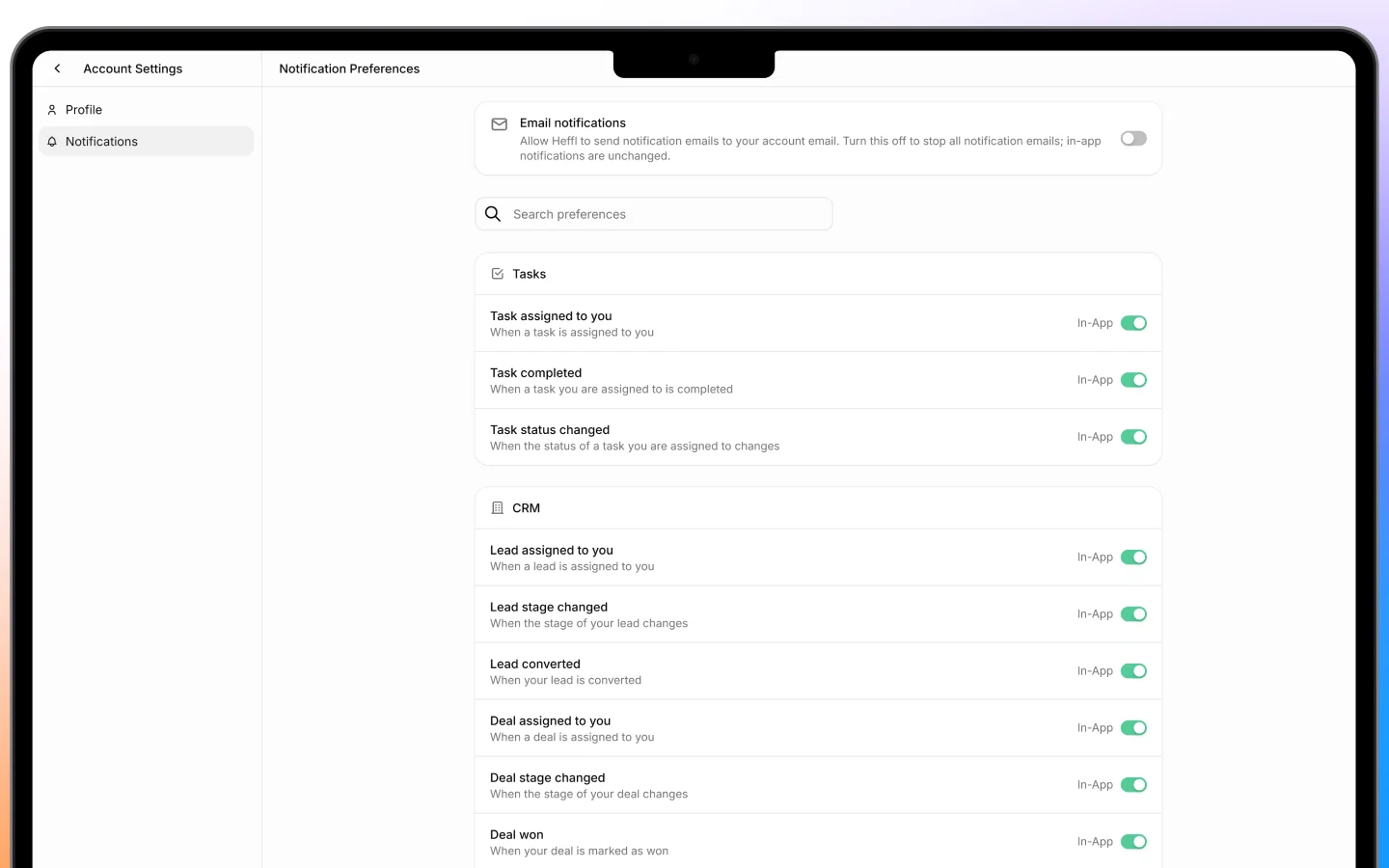
What you can be notified about
Notifications are tied to activity across your records and work, such as:- A record or task being assigned to you
- A task or follow-up becoming due
- Updates on deals, quotations, or invoices you are involved in
- Mentions or comments directed at you
- Field service schedule changes
- System events relevant to your role
Choosing your channels
For each type of notification, you can usually choose how you receive it, in-app, by email, or both. A practical approach:- Keep in-app on for most things, since it is low-friction
- Reserve email for items you must not miss, such as assignments and due follow-ups
- Use a connected channel like Zoho Cliq if your team lives in that tool
Managing notification volume
If you are getting too many alerts, reduce the noise by turning off notifications for events you do not act on, and keeping only the ones that need your attention. If you are missing things, do the opposite, switch on alerts for assignments and due dates so nothing slips. Because these are personal settings, your choices affect only your own notifications, not your teammates’.Staying on top of follow-ups
Notifications work hand in hand with the next activity dates you set on leads, deals, and tasks. When a follow-up comes due, a notification surfaces it, so the reminders you set actually reach you. See Logging activities, notes, and follow-ups.What to do next
- Review your account settings and profile
- Connect a channel like Zoho Cliq if you want alerts there
- Set next activity dates so follow-up notifications reach you