

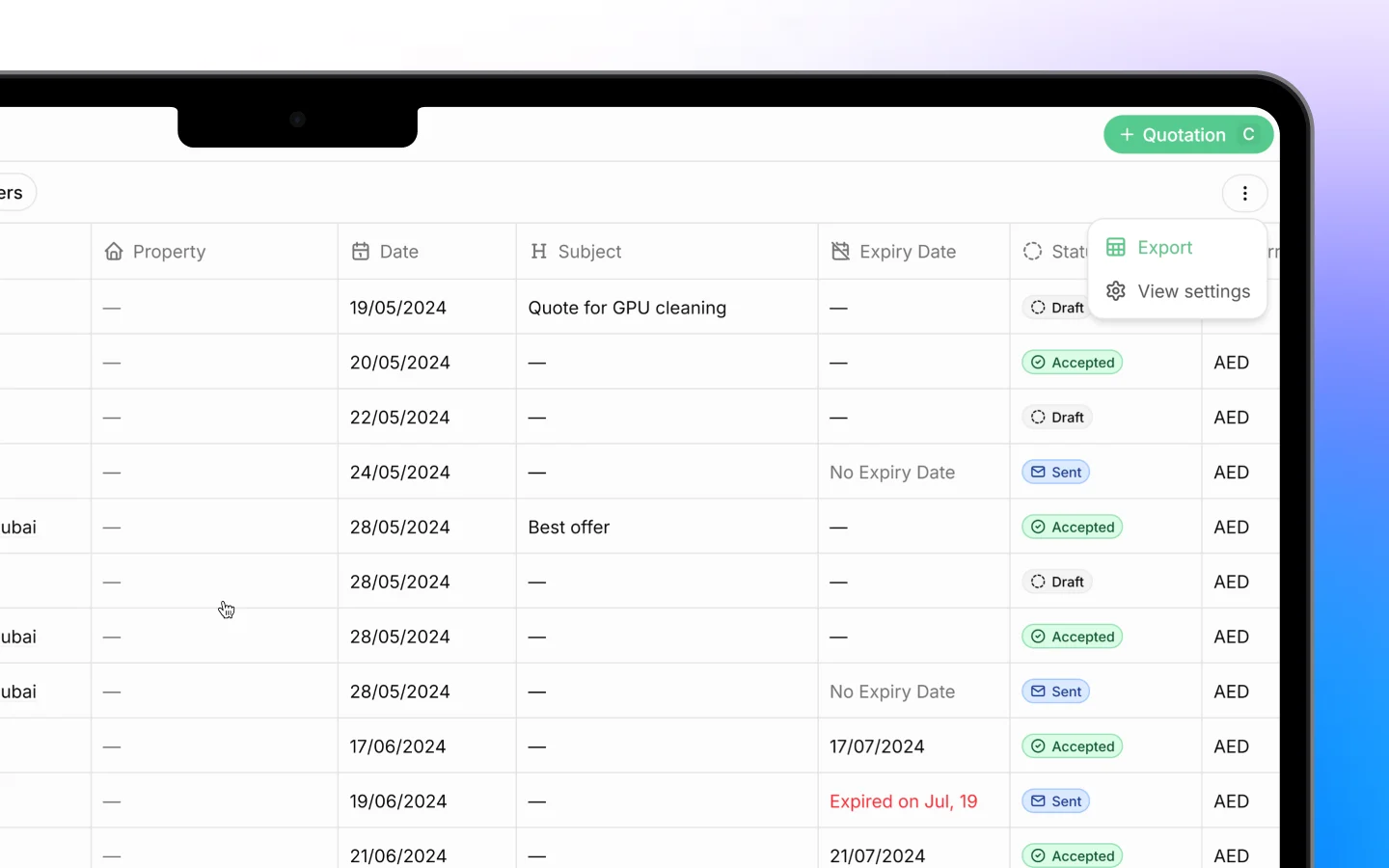
Downloading as a PDF
To save a copy of the quote to your device:- Open the quotation from the Quotations list
- Click the download icon in the top right
- The quote saves as a PDF, named after the quote and client (for example, “Quotation QTTS-1027”)
Printing
To print the quote or save it as a PDF through your browser:- Click Print in the top right
- Your browser’s print dialog opens, showing a preview of the quote
- Choose your Destination (a printer, or “Save as PDF”)
- Set Pages, Layout (Portrait or Landscape), and Color as needed
- Click Print
Sending by email
To send the quote straight to the client from Heffl:- Click More in the top right
- Select Send via email
- Confirm the recipient and message
- Send
Sharing a link
To give the client a link they can open in a browser:- Click More in the top right
- Select Share a link
- Copy the link and send it to the client
Which method to use
Each option suits a different need:- Download PDF when you need a file to keep or attach
- Print when you need a paper copy or browser-based PDF
- Send via email when you want Heffl to deliver it and track the status
- Share a link when the client prefers to view it online
What to do next
- Convert an accepted quotation to an invoice
- Track invoices and payment status
- Set up products and services for faster quoting