

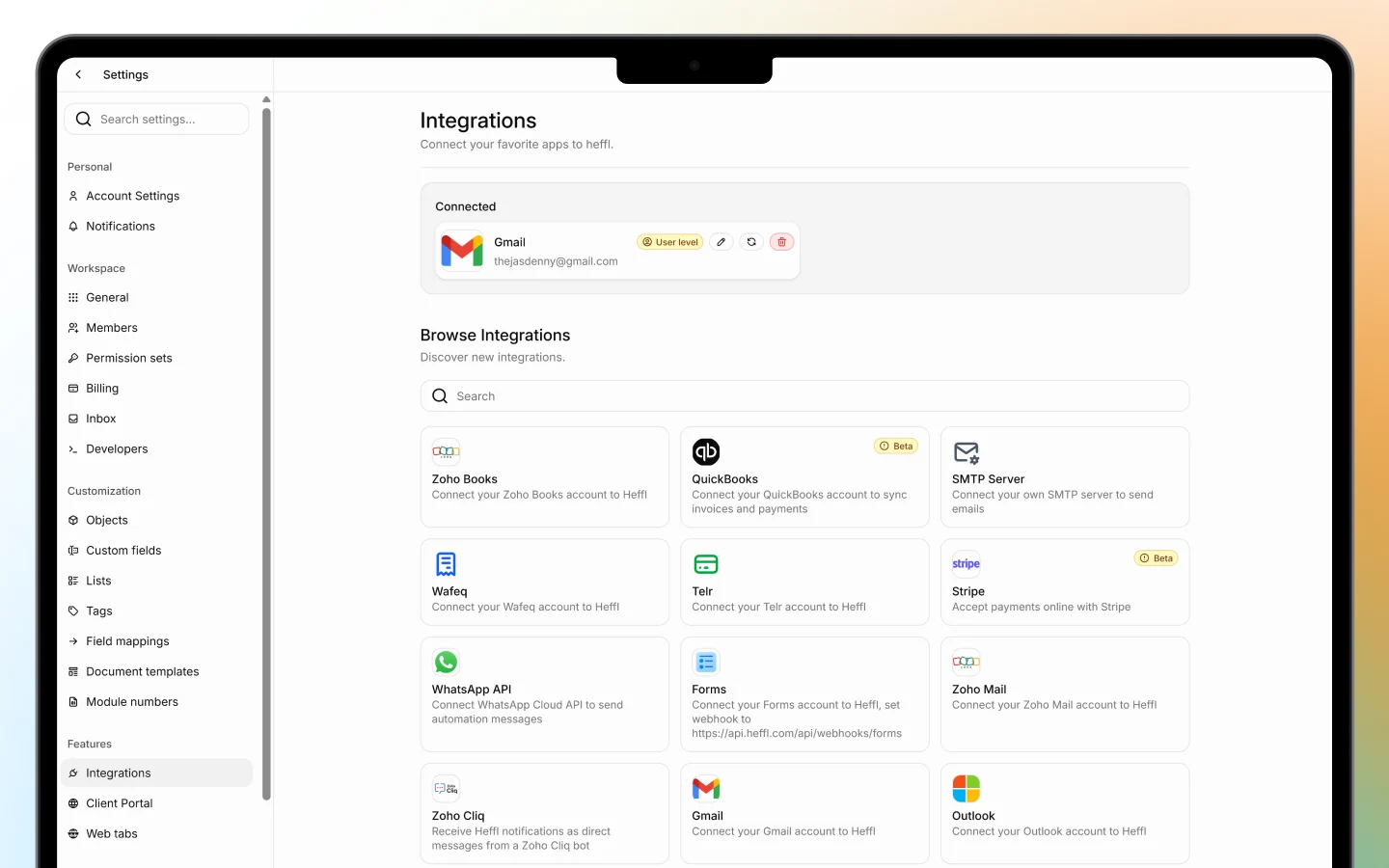
Connecting a channel
Before messages appear, you connect a channel. For WhatsApp:- Open the Inbox and select WhatsApp
- On the Connect WhatsApp screen, click Connect WhatsApp
- Complete the secure connection flow
- Once connected, your WhatsApp conversations load into the Inbox
A unified inbox
Instead of checking WhatsApp on one device, LinkedIn in a browser, and email somewhere else, the Inbox collects conversations from connected channels together:- Email (Gmail, Outlook, or Zoho Mail)
Reading and replying
A connected channel opens with three areas:- A conversation list on the left
- The message thread in the middle
- A contact info panel on the right
Assigning conversations
Conversations can be assigned to team members, so it is clear who is responsible for responding. Assigning helps when several people share the Inbox: each conversation has an owner, nothing is answered twice, and nothing falls through the cracks.Converting a conversation into a lead
When a conversation turns into a real opportunity, convert it into a lead or contact directly from the Inbox. The conversation’s details carry across, so you capture the prospect in your CRM without retyping anything. Once converted, the lead behaves like any other, you can track its stage, log follow-ups, and move it toward a deal. See Managing leads.Why a unified inbox helps
- No channel gets missed because it was on someone’s personal app
- The whole team sees the full history of each client
- Replies, assignments, and follow-ups stay in one system
- A promising chat becomes a tracked lead in a click
What to do next
- Connect your channels so messages flow in
- Convert promising conversations into leads
- Assign conversations so your team knows who owns each one