

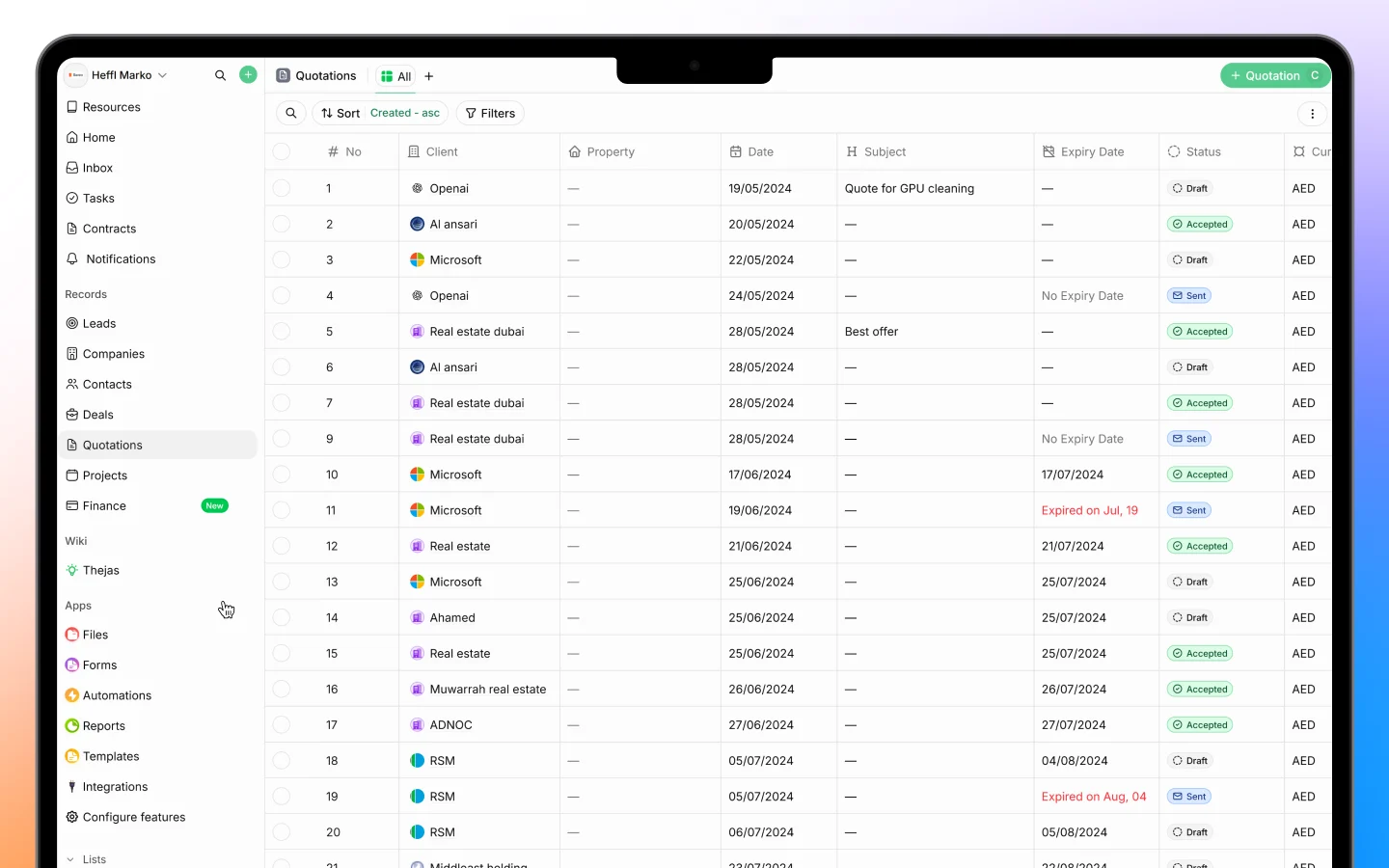
Creating a quotation
- Go to Quotations in the sidebar
- Click + Quotation in the top right (or press C)
- Choose a template (see below)
- Fill in the quote details
- Add your line items
- Save and send
Choosing a template
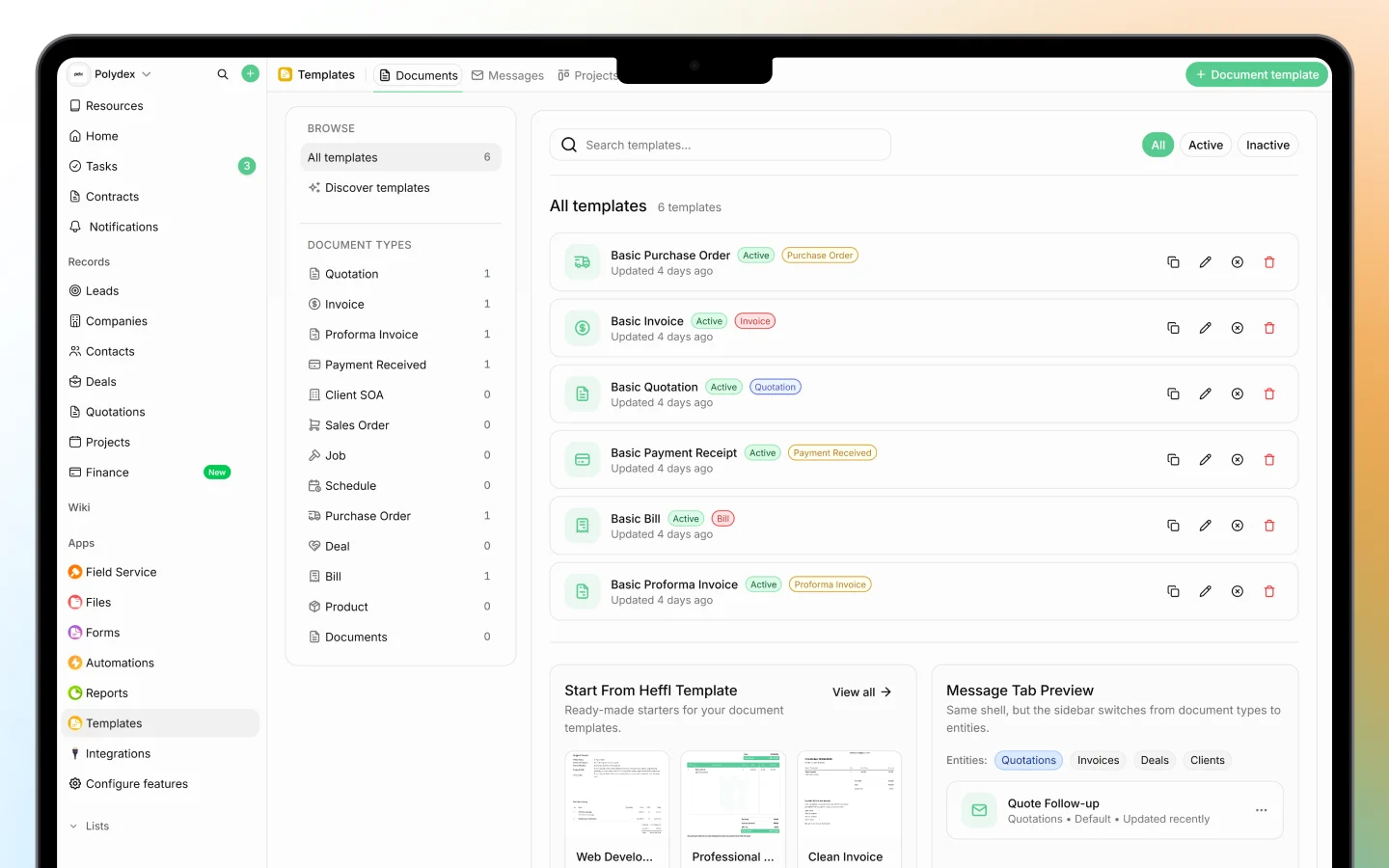
When you start a quote, Heffl opens the Select a Template window with two tabs:- My templates are the templates saved in your workspace, plus a Create from Scratch option for a blank quote
- Discover templates are ready-made designs you can use, such as Web Development Quote, Business Proposal, and Service Quotation
Filling in the quote details
At the top of the quote, set the key fields:- Template and Currency
- Date and Expiry date (how long the quote is valid)
- Tags and Sales person
- Client, the company or contact the quote is for
- Property, Contact, and Deal to link the quote to related records
- Subject, a short description of the quote
Adding line items
The body of the quote is built from line items, the products or services you are quoting for. For each line you can set:- Item, typed or selected from your product catalog
- Description
- Qty (quantity)
- Rate and Discount
- Tax, such as 5% standard
- Amount, calculated automatically
- Line item adds a product or service row
- Heading adds a section title to group items
- Bundle adds a predefined group of items
Form and content views
At the top right, switch between:- Form, where you enter the structured quote data (client, line items, totals)
- Content, where you edit the document’s written content and layout
Saving and sending
Click Save Draft (or press Ctrl + Enter) to save the quote as a draft. When ready, send it to the client by email or share it through the client portal. A quote moves through statuses you can track from the Quotations list: Draft, Sent, Accepted, and Expired. The list shows each quote’s number, client, date, expiry, status, currency, subtotal, total, sales person, and creator.After the quote is accepted
Once a client accepts, convert the quote into an invoice in one click so you can collect payment. See Invoices: creating, sending, and statuses.What to do next
- Manage quotation line items and pricing in detail
- Convert an accepted quotation to an invoice
- Set up your products and services catalog for faster quoting