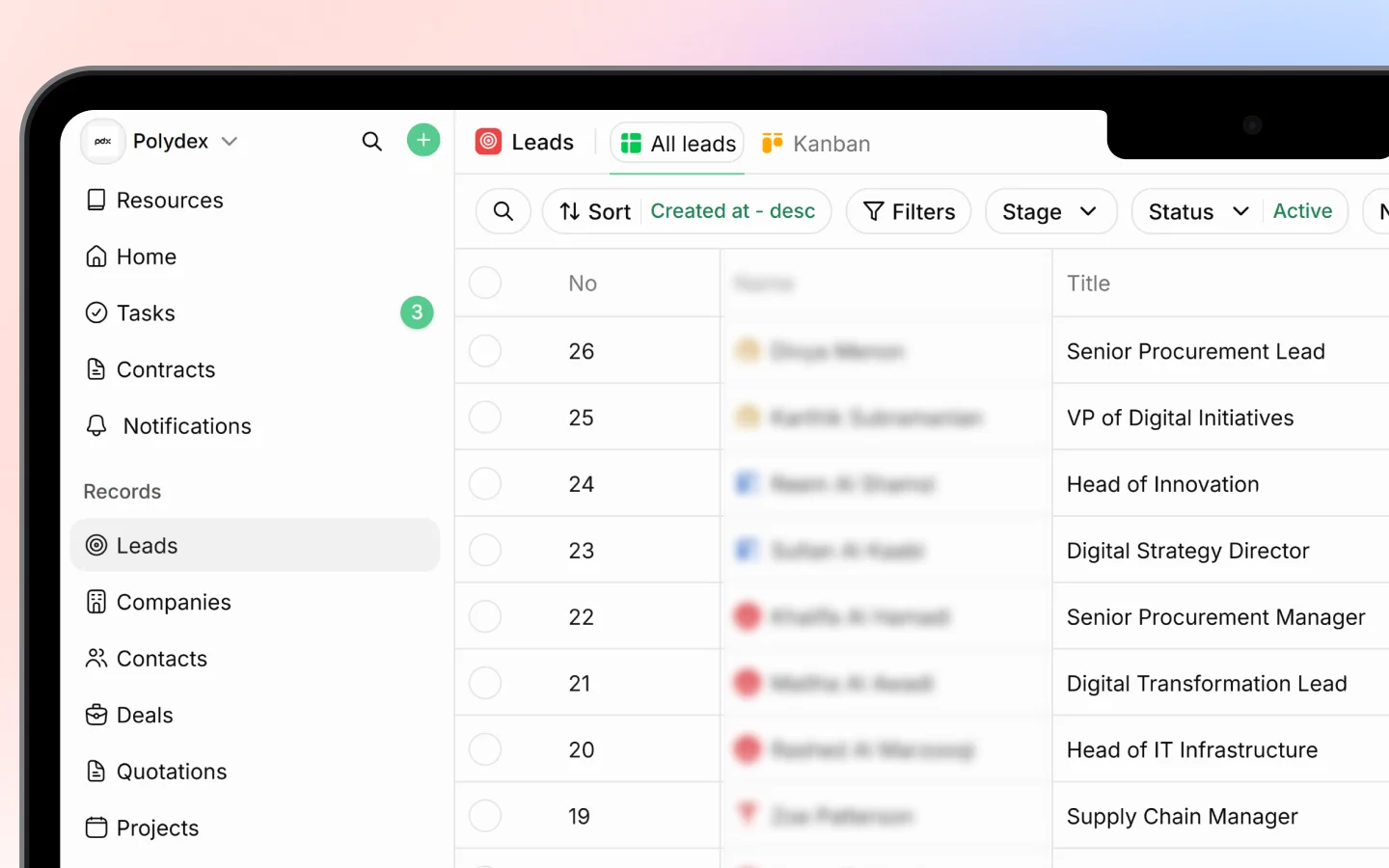
The Leads page offers two ways to view your leads: a list view and a Kanban board. Both show the same leads, just arranged differently. Switch between them depending on whether you want detail or a visual overview of your pipeline. You switch views using the tabs at the top of the Leads page: All leads for the list, and Kanban for the board.
Switching Views 1

List view (All leads)

The list view shows your leads in a table, one row each. This is the best view for scanning detail and editing many leads quickly. It shows columns such as No, Name, Title, Stage, Mobile, Email, Website, Tags, Notes, and Next Activity. You can:
  • Scroll horizontally to see more columns
  • Click any cell to edit it inline (stage, tags, contact details, notes)
  • Select rows with the checkboxes for bulk actions
  • See your total lead count at the bottom (for example, “81 leads”)
Use list view when you need to compare leads side by side or update fields in bulk.

Kanban view

The Kanban view shows your leads as cards arranged in columns, one column per stage: New, Followed up, Contacted, Demo Done, Unqualified, Junk, and Converted. Each column header shows how many leads sit in that stage. Each card shows the lead’s name, ID number, next activity date, and assignee. You can:
  • See your whole pipeline at a glance
  • Spot which stages are crowded or empty
  • Drag a card from one column to another to move the lead to a new stage
  • Scroll within a column when it holds many leads
Use Kanban view when you want a visual picture of where your leads stand and to move them through stages by dragging.

Controls that work in both views

The toolbar above the leads stays the same whichever view you are in, so your filters and sorting carry over when you switch: Sort Click Sort to order your leads by Created at, Name, or Value, in Ascending or Descending order. Filters Click Filters to narrow by Created at, List, Assigned to, Owners, Sources, or Lost Reasons. Stage Filter to show only certain stages (New, Followed up, Contacted, Demo Done, Unqualified, Junk, Converted). Tick the stages you want, or click Clear to reset. Status Switch between Active and Archived leads. Active is shown by default. Next Activity Date Focus on leads needing attention soon: Today, Tomorrow, Next 7 Days, Next 30 Days, or a Custom range. Search Use the search icon to find a specific lead by name in either view.

Which view should you use?

Use list view when you want to read and edit lead details, work through many leads, or make bulk changes. Use Kanban view when you want to see your pipeline visually and move leads between stages by dragging. Your choice of view is remembered, so Heffl opens the same view next time you return to Leads.