

How an automation works
Every automation has two parts:- A trigger, the event that starts it (for example, “Lead Created” or “Deal Stage Changed”)
- One or more steps (actions), what Heffl does in response (for example, “Send email,” “Create Task,” or “Send message”)
The Automations area
The Automations area has three tabs: Automations Your list of automations, each with an on/off toggle and its last run time. Toggle one off to pause it without deleting it. Templates Pre-built automations you can use as a starting point (see below). Runs A log of every time an automation has executed. Each entry shows the Run ID, the automation name, its status (such as Completed), any failed step, the error if one occurred, and the run date. Use this to confirm automations are firing and to troubleshoot any that fail.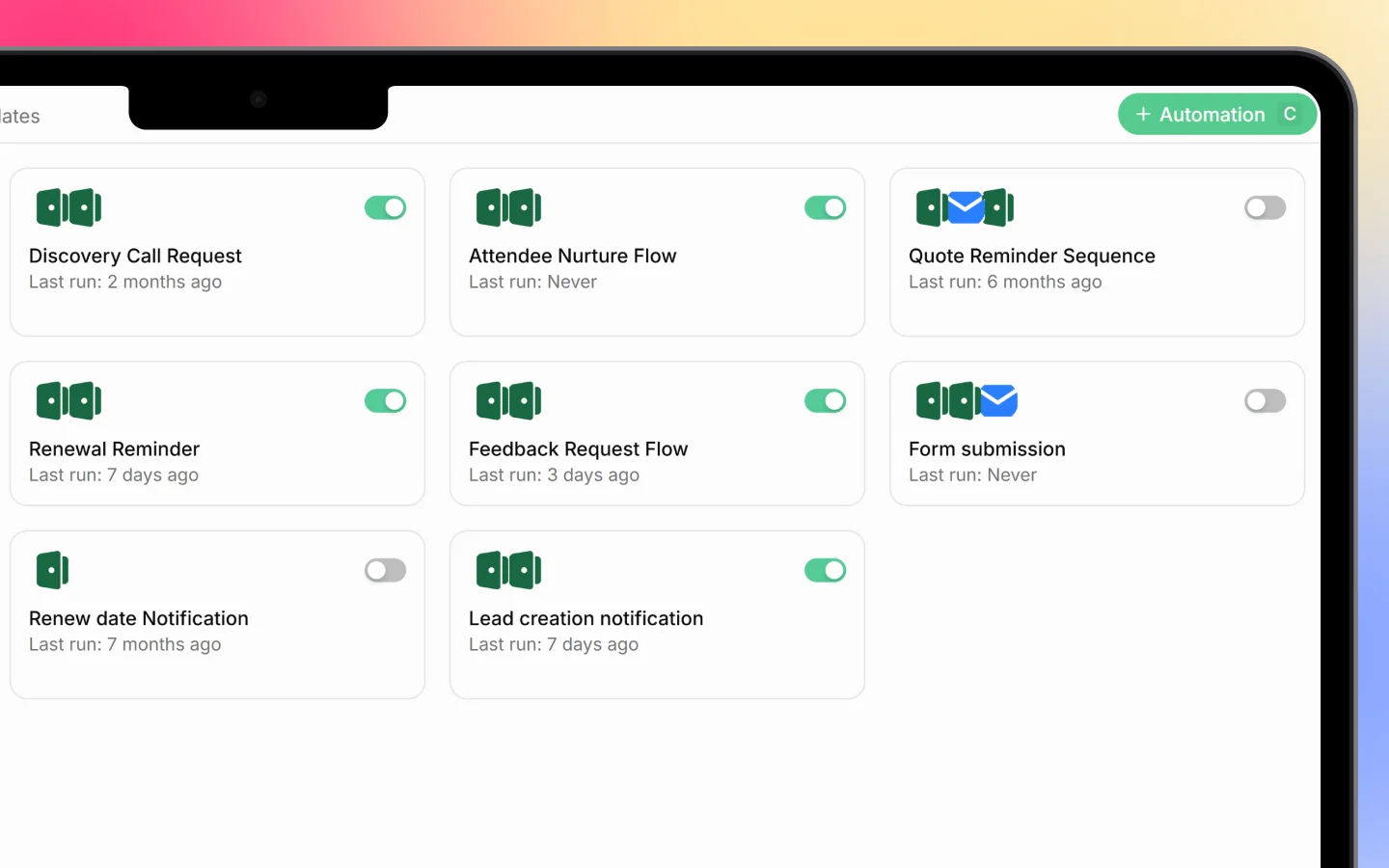
Templates
Rather than build from nothing, you can start from a template. Templates are grouped by record type, Leads, Deals, Quotations, Invoices, and Payments, and each shows its trigger and steps. Examples include:- New Lead: Instant WhatsApp + Follow-up Task, messages a new lead and creates a call task
- Quotation Accepted: Welcome Email + Kickoff Task, welcomes the client and sets up delivery
- Invoice Sent: Payment Reminder Email, schedules a reminder when an invoice is sent
- Payment Received: Thank-you Email + Retention Task, thanks the client and schedules follow-up
- Deal Won: Create Project + Internal Handoff, turns a won deal into a project and notifies the team
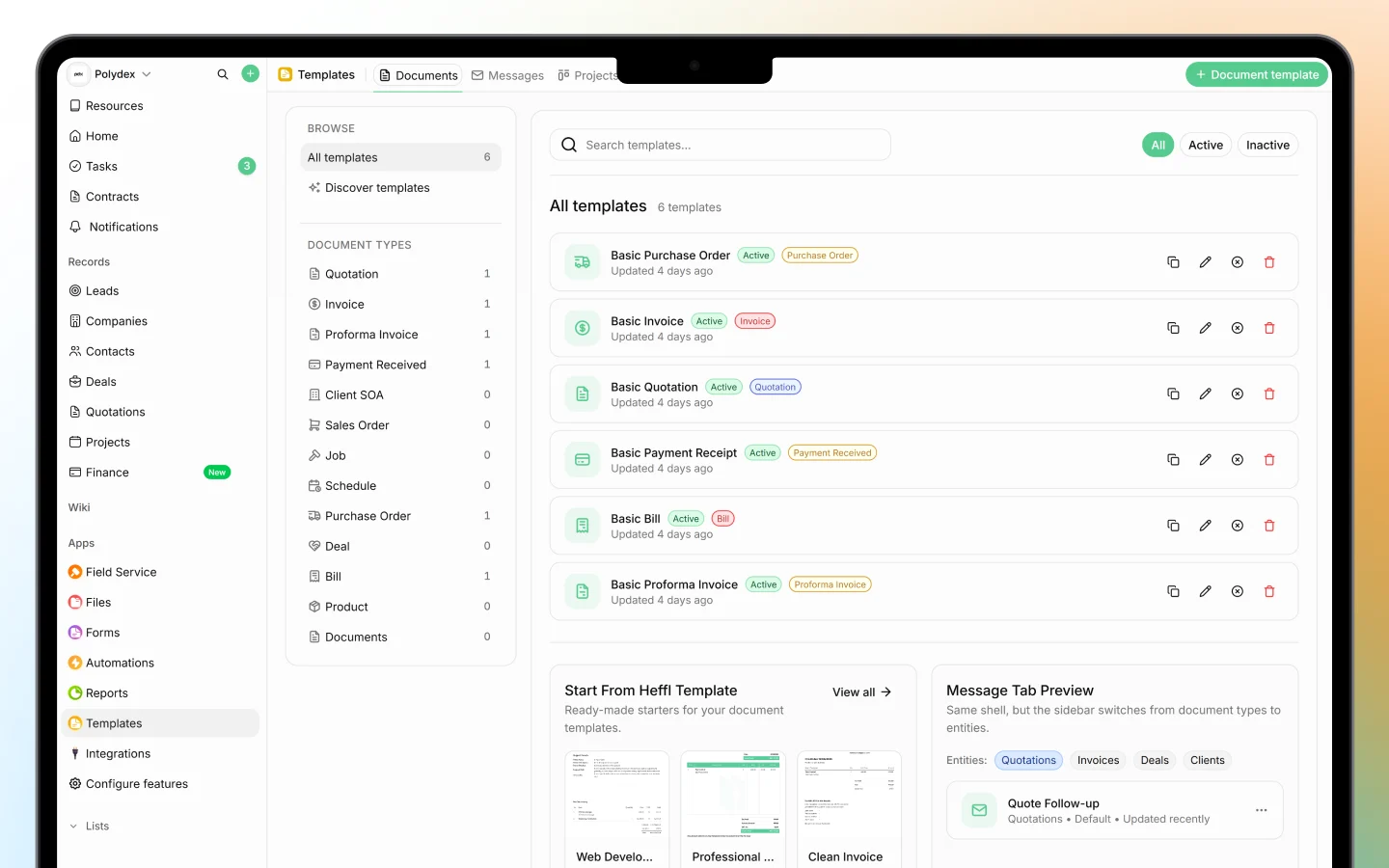
What triggers and actions are available
Triggers are tied to events across your records, such as a lead being created, a deal changing stage, a quotation’s status changing, an invoice being sent, or a payment being received. Actions include sending an email, sending a message (such as WhatsApp), creating a task, creating a project, sending a notification, and adding a delay between steps so actions happen later rather than all at once.Why automations help
- Follow-ups and reminders happen on time, every time
- New leads get an instant response
- Won deals flow into projects without manual handoff
- Your team spends less time on repetitive admin
- The Runs log gives you a record that it all happened
What to do next
- Set up your first automation, from a template or from scratch
- Browse the templates to see what is possible
- Check the Runs tab to confirm your automations are firing