

Linking a contact to a company
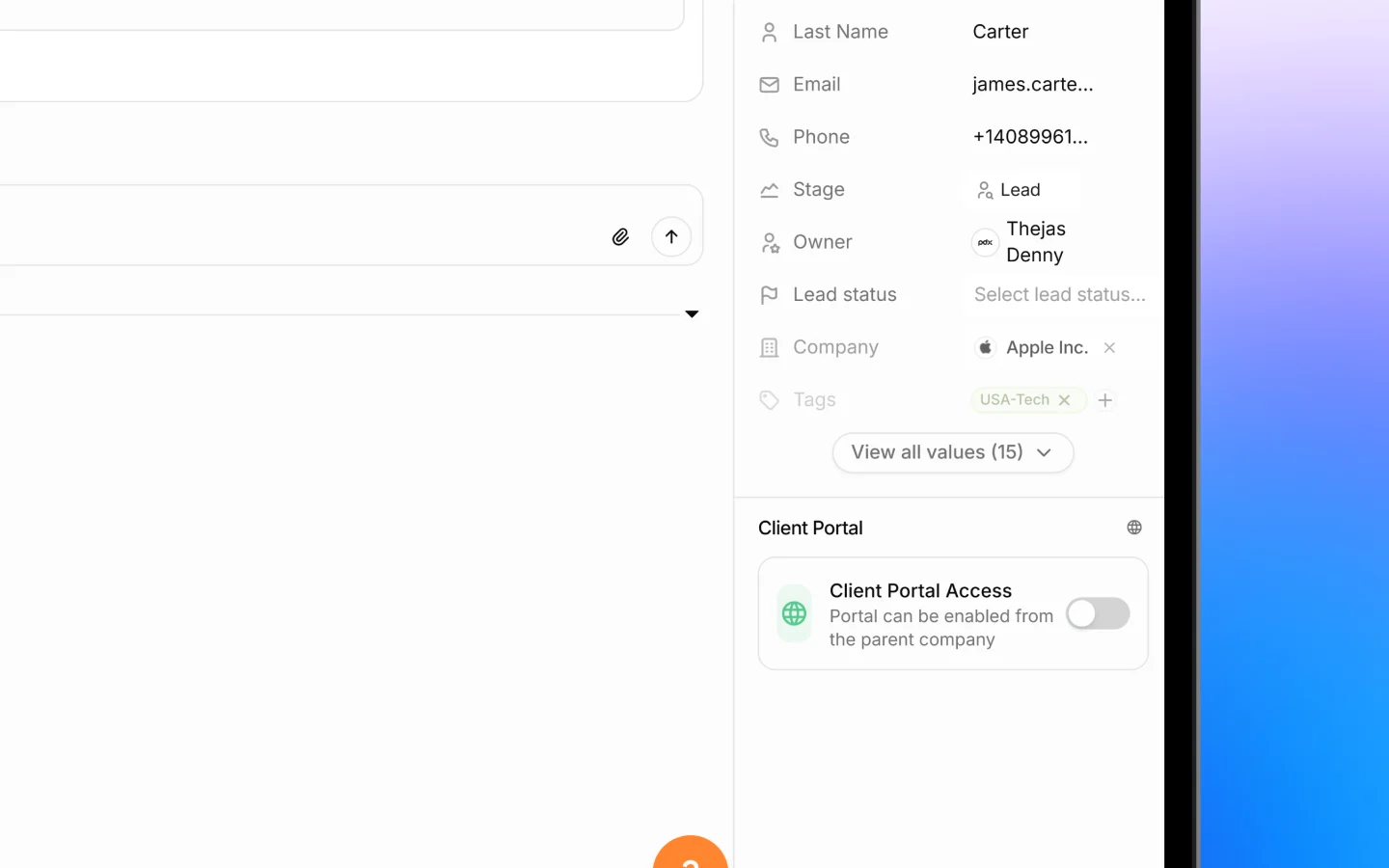
A contact belongs to one company. To set or change that link:- Open the contact by clicking its row in the Contacts list
- In the Details panel on the right, find the Company field
- Click it and search for the company
- Select the company to link it
Linking a contact to a deal
Deals track sales opportunities, and each deal can have one or more contacts associated with it, the people involved in that opportunity.- Open the deal by clicking it in the Deals list
- Find the Contacts section on the right of the deal record
- Click to add a contact
- Select the contact to associate it with the deal
How these links work together
When a lead converts into a deal, its contact information carries forward, so the deal is connected to the right people from the start. From there, the links flow naturally:- The contact is linked to a company
- The deal is linked to a client (the company or contact)
- The deal lists the contacts involved
Why linking matters
Keeping these links current gives you:- A full picture of who you are dealing with on each deal
- The right contact pulled automatically onto quotes and documents
- Clean reporting, since deals trace back to real people and companies
- No orphaned records floating without context
What to do next
- Add and manage deals to track your opportunities
- Work with the deals pipeline to move deals through stages
- Send a quotation to a linked contact