

Creating a project
- Go to Projects in the sidebar
- Click + Project in the top right (or press C)
- Choose a pipeline for the type of work (Website, Bookkeeping, Construction, and so on). Each pipeline has its own stages.
- Pick a template or start blank:
- Continue blank starts a fresh project with no preset tasks
- Use template starts from a saved template that pre-fills tasks and items (the card shows how many tasks and items it includes)
- Fill in the project details
- Save
Creating a project from a deal
When a deal is won and work needs delivering, open the deal and click Convert to Project. The deal’s client and details carry into the new project, so you do not re-enter them. See Working with the deals pipeline.Setting up the project
When creating or editing a project, set these details:- File title or project name
- Description, a brief or notes about the work
- Stage, the starting point in the pipeline (such as Discovery)
- Assignees and project lead
- Start date and End date
- Client
- Tags
- Budgeted hours, the time you expect the project to take
- Line items, the products or services tied to the project
- Billing type, such as Flat Rate
Viewing and finding projects
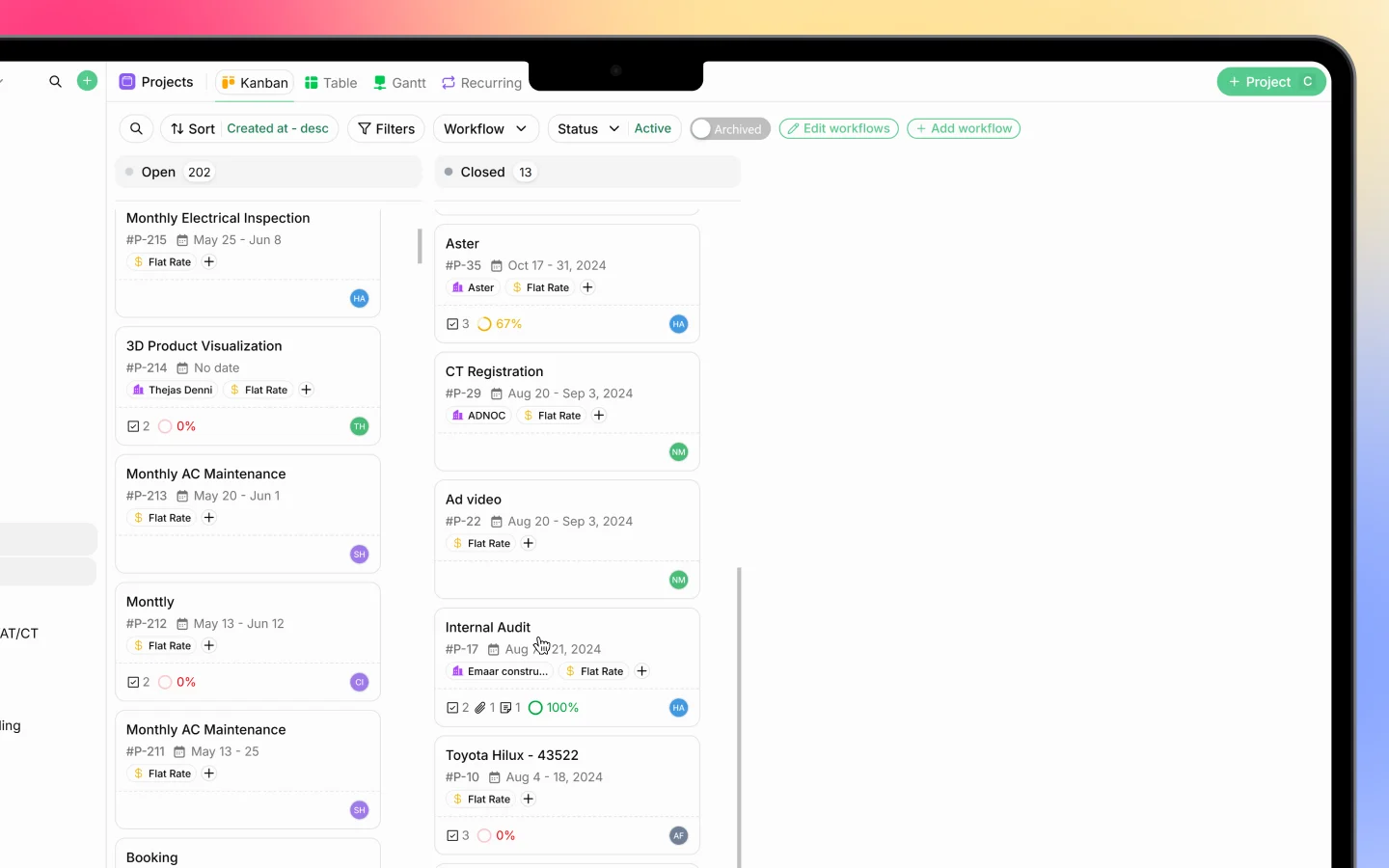
Switch views from the tabs at the top depending on what you need: Kanban for a status board, Table for a detailed list, and Gantt for a timeline. See the introduction for what each view shows. To find projects, use the toolbar:- Sort orders by created date and other fields
- Filters narrows the list
- Workflow filters to a specific pipeline
- Status switches between Active and Archived
- Search finds a project by name
Managing a project
Open a project to manage it. From the detail view you can:- Move it through stages as work progresses
- Add and assign tasks. See Breaking projects into tasks
- Log timesheets against it. See Logging timesheets and tracking hours
- Attach files and briefs
- Update details such as dates, assignees, and budgeted hours
- Track progress, shown as a percentage based on completed tasks
Moving a project through stages
Advance a project as the work moves forward:- On the Kanban board, drag the project card between columns
- In the Table view, change the Phase (stage) directly
- In the project detail view, set the stage from the stage controls
Archiving and closing projects
When a project is finished, move it to its closing stage (such as Completed) so it shows under the Closed group on the board. To hide a project from the active list without deleting it, archive it. Archived projects can be viewed again using the Status filter.What to do next
- Break the project into tasks
- Log timesheets against the work
- Set up recurring projects for repeating work