

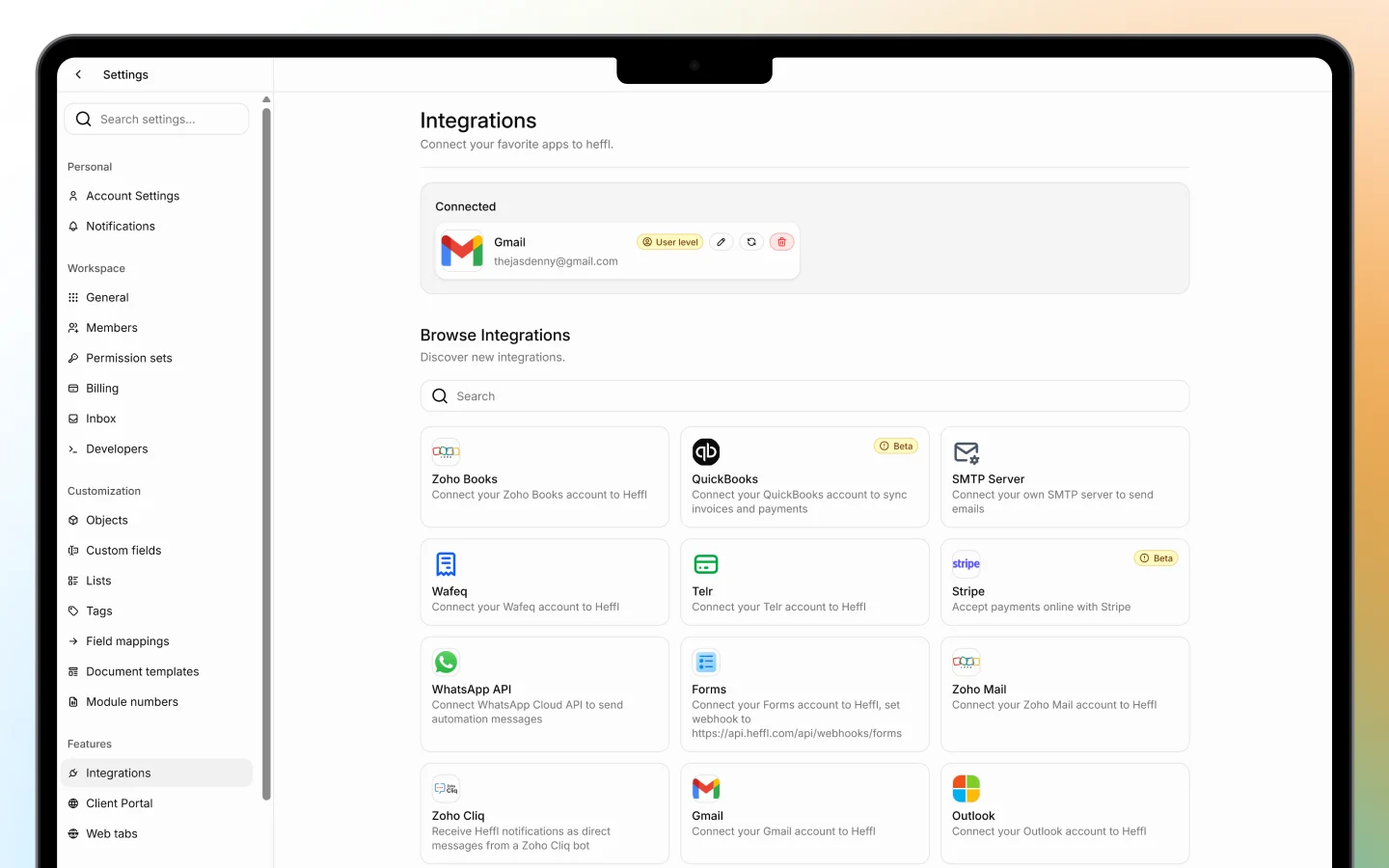
How integrations work
Open Apps & integrations to see two areas:- Installed apps, the Heffl modules already part of your workspace (CRM, Sales, Forms, Automations, Files, Field Service, and Purchases)
- Integrations to connect, third-party services you can link to Heffl
AI assistants
Connect Heffl to ChatGPT, Claude, or Cursor through MCP to work with CRM records, reminders, forms, and other supported workflows from a chat. Use OAuth to sign in and authorize the connection; no manual API key is needed. Follow Connect Heffl to AI (MCP) for the server URL, setup steps, permissions, and troubleshooting. Writes take effect in your selected workspace.- Gmail, connect your Gmail account
- Outlook, connect your Outlook account
- Zoho Mail, connect your Zoho Mail account
- SMTP Server, connect your own mail server to send emails
Messaging
Bring client conversations into Heffl’s Inbox and send messages from automations.- WhatsApp API, connect WhatsApp Cloud API to manage chats and send automation messages
- Zoho Cliq, receive Heffl notifications as direct messages from a Zoho Cliq bot
Payments
Let clients pay invoices online.- Stripe (Beta), accept payments online with Stripe
- Telr, connect your Telr account
Accounting
Sync your financial records to avoid double entry.- Zoho Books, connect your Zoho Books account
- Wafeq, connect your Wafeq account
Scheduling and booking
Sync meetings and bookings to your Heffl contacts.- Google Calendar, see and update Google Calendar events directly in Heffl
- Calendly, sync Calendly bookings to Heffl contacts
- TidyCal, sync TidyCal bookings to Heffl contacts
- LunaCal, sync LunaCal bookings automatically when someone books through your LunaCal scheduling page
- Cal.com, sync Cal.com bookings to Heffl contacts (coming soon)
Meeting notes
- Fathom, connect Fathom AI to sync meeting notes, summaries, and action items into Heffl
Forms
- Forms, connect your Forms account and set a webhook so form submissions flow into your workspace. See Creating and sharing forms.
Disconnecting an integration
To disconnect, return to Apps & integrations, open the integration, and remove it. Disconnecting stops the data sync but does not delete data already in Heffl.What to do next
- Connect your email to send from your own address
- Connect WhatsApp or LinkedIn to use the Inbox
- Connect Stripe or Telr to accept online payments