

Adding a company
- Go to Companies in the sidebar
- Click Add Company in the top right (or press C)
- Enter the Company name
- Fill in the other details as needed (all optional except the name):
- Website
- Owner, the team member responsible
- Primary Contact, the main person you deal with
- Stage (Lead, Opportunity, Active Client, Past Client)
- Tax number and Opening balance
- Preferred currency
- Tags and Source
- Click Add Company (or press Ctrl + Enter)
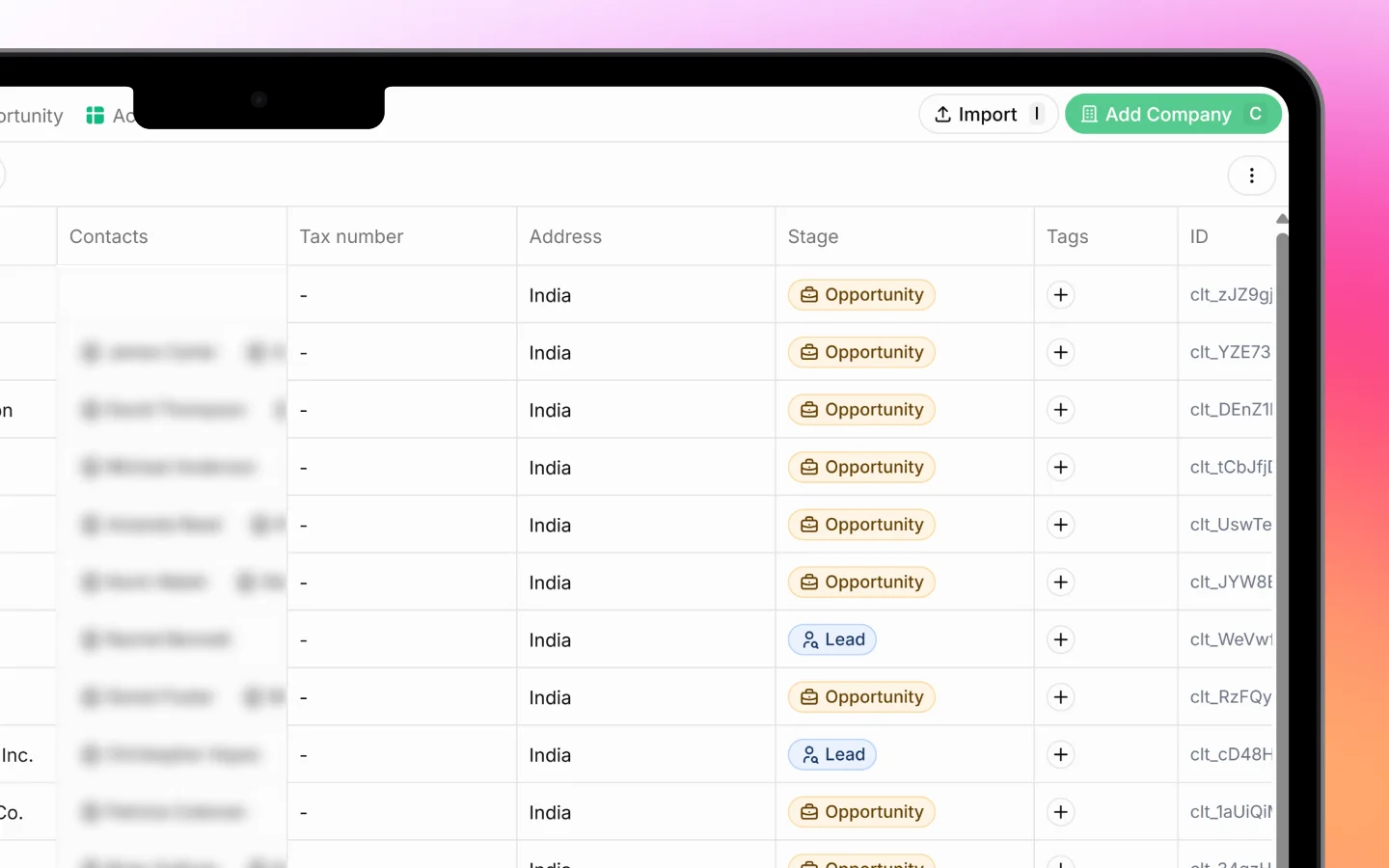
Company stages
Each company has a stage showing where it stands in your relationship:- Lead is a prospect you have not yet won
- Opportunity is an active sales opportunity
- Active Client is a current paying client
- Past Client is a former client
Viewing and organizing companies
The Companies page opens in a list, one company per row, showing columns such as #, Name, Contacts, Tax number, Address, Opening balance, Stage, Owner, Tags, and First created. Your total count shows at the bottom (for example, “89 companies”).Saved views (tabs) Across the top are saved views that filter the list for you:
- All shows every company
- Leads shows companies at the Lead stage
- Opportunity shows active opportunities
- Active clients shows current clients
Sort and filter
- Sort orders companies by created date and other fields
- Filters narrows the list by your chosen criteria
- The search icon finds a specific company by name
Editing a company
Click any company row to open its full record, where you can update details, view linked contacts, deals, and quotes, and log activity. You can also edit some fields directly from the list:- Stage by clicking the stage cell
- Tags by clicking the + in the Tags column
- Contact and other details by clicking the relevant cell
Linking contacts to a company
A company can hold several contacts, the individual people you deal with there. Set a Primary Contact when adding the company, and link more contacts from the company record. See Linking contacts to a company for the full process.Importing companies
If you have companies in a spreadsheet, click Import to add them in bulk. The flow works like the lead import: upload your file, select the header row, and map your columns to Heffl fields. See Importing leads from a file for the step-by-step process, which is the same here.
What to do next
- Link contacts to your companies
- Move companies through their stages as relationships develop
- Create deals and quotations tied to a company