

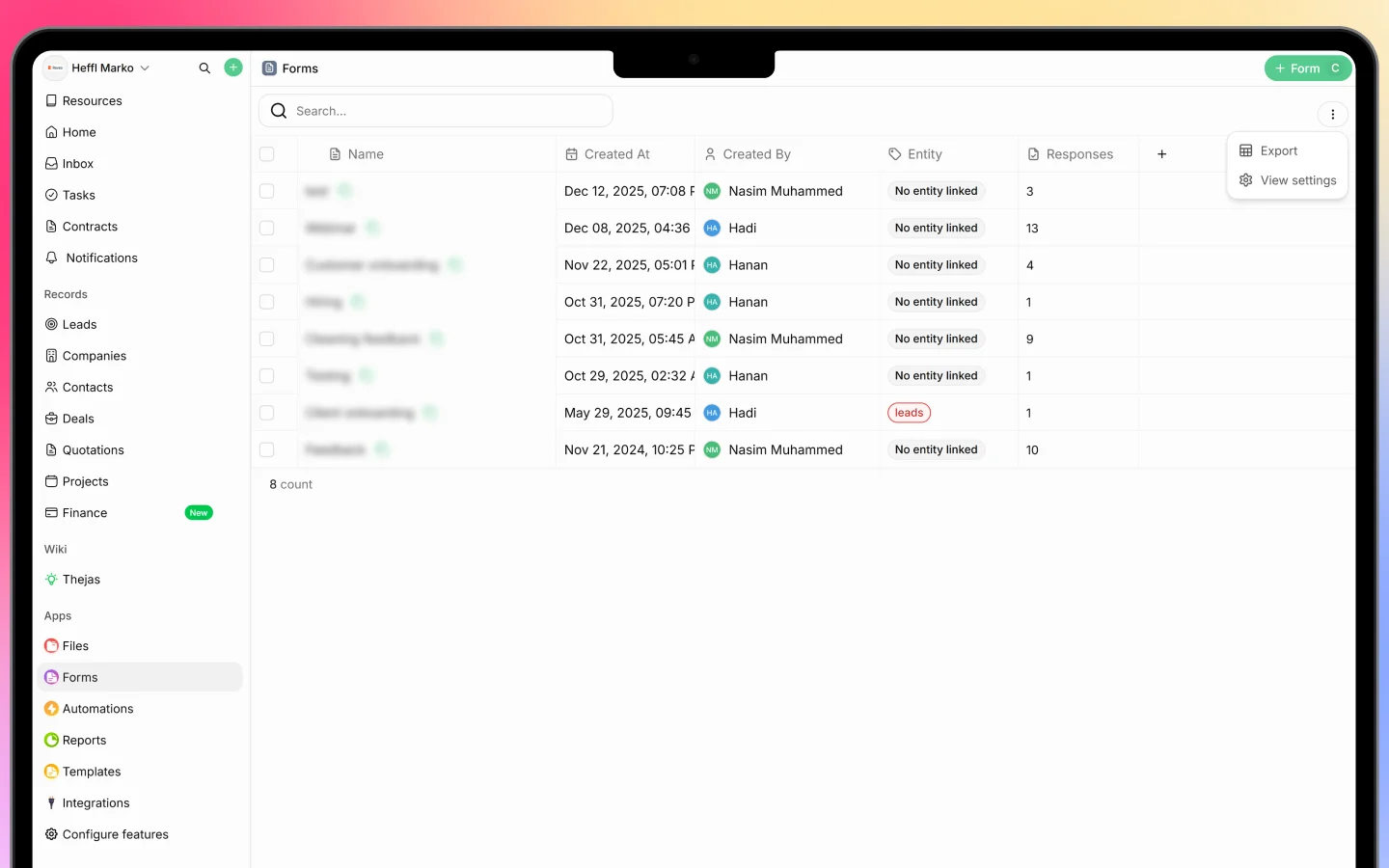
The Forms list
The Forms page lists every form with columns for:- Name
- Created At and Created By
- Entity, the record type the form is associated with (such as “leads”), or “No entity linked”
- Responses, how many submissions it has received
Creating a form
Click + Form to open Create a new form, then pick a starting point: Start from scratch Build the form manually with full control over its pages and fields. Import with Heffl AI Let AI draft the form for you. Choose one of:- Type or paste, write a prompt or paste source text (for example, “Create a website intake form with contact info, brand goals, timeline, budget range, and required services”)
- Upload document, drag in a
.txtor.docxfile and let Heffl AI turn it into a form
Building the form
The form opens in the Builder tab, where you can:- Add fields with + Field, the questions and inputs your form collects
- Add pages with + Add, to split a longer form into multiple steps
- Set a Thank you / Ending page shown after submission
- Customize the form’s appearance
- Click any page or question to edit its settings
Linking a form to an entity
A form can be associated with a record type (its Entity, such as leads), or left with no entity linked. This association organizes responses under that record type. Note that linking a form to an entity does not automatically create a record when someone submits, it stores the response. If you want a submission to create a lead or another record, use an automation triggered by the form.Sharing a form
Once your form is ready, share it from the top-right actions:- Copy link, share a public link people can open and fill in
- Embed, place the form directly on your website using the embed option
Viewing responses
Open the Responses tab to see submissions. Each response shows:- Created At, when it was submitted
- A response Number
- Linked To, the record it is associated with, if any
What to do next
- Share your form by link or embed it on your site
- Set up an automation to act on submissions (for example, create a lead)
- Review responses in the Responses tab