

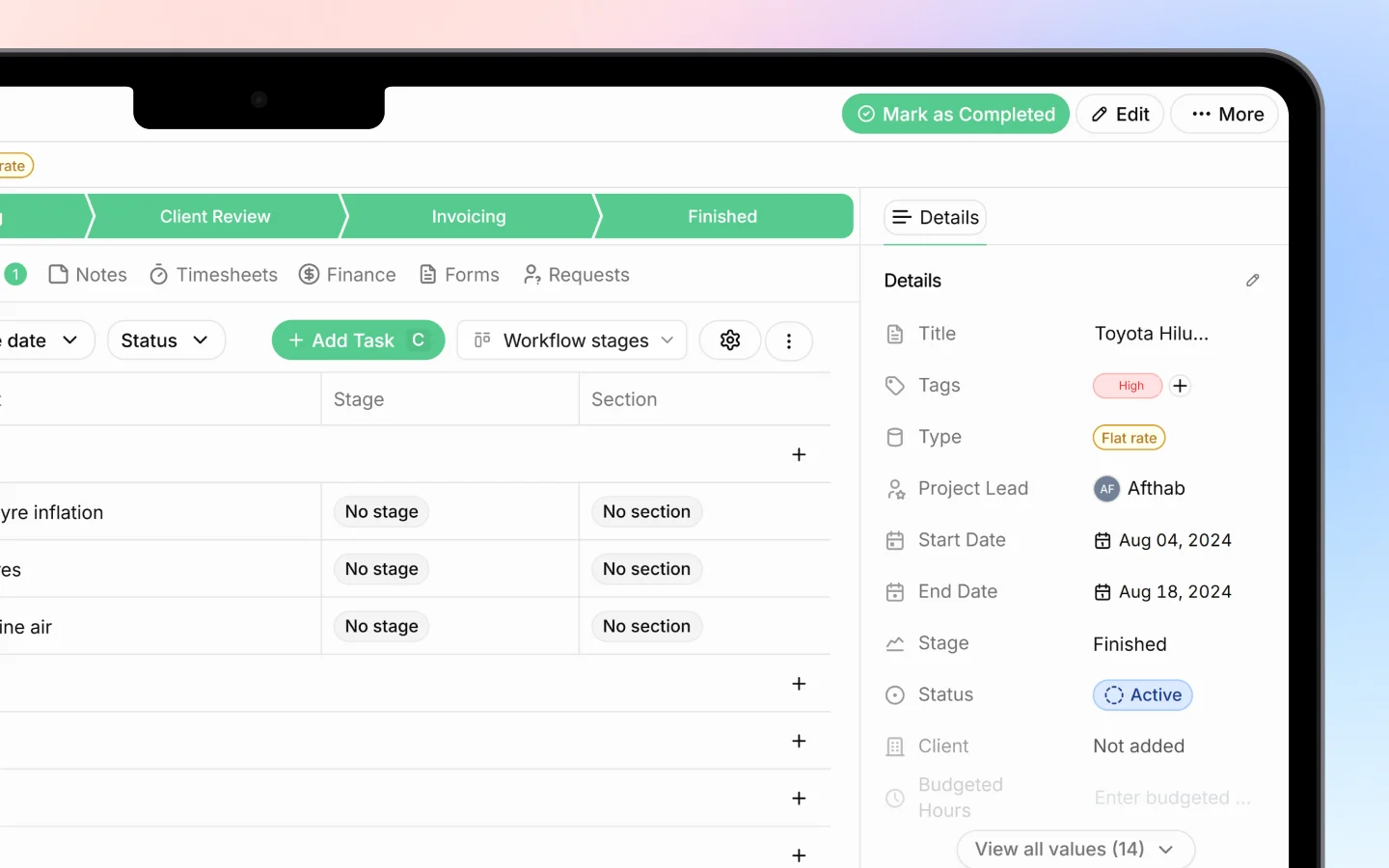
How tasks relate to projects
A project is the whole body of work; tasks are the steps to complete it. For example, a “Website” project might have tasks like Planning, Designing, and Internal Review. Each task belongs to a project and carries its own ID based on the project (such as MFE-1 or CR3-1). As tasks are completed, the project’s progress percentage updates, which you can see on the Kanban cards (for example, “3 tasks, 67%”).Where to find tasks
You can work with tasks in two places:- Inside a project, where the project’s own tasks are listed and managed together
- The Tasks area in the sidebar, which collects tasks across all projects and records in one place
Adding a task to a project
- Open the project
- Find its tasks section
- Add a new task
- Give it a title and set its details (see below)
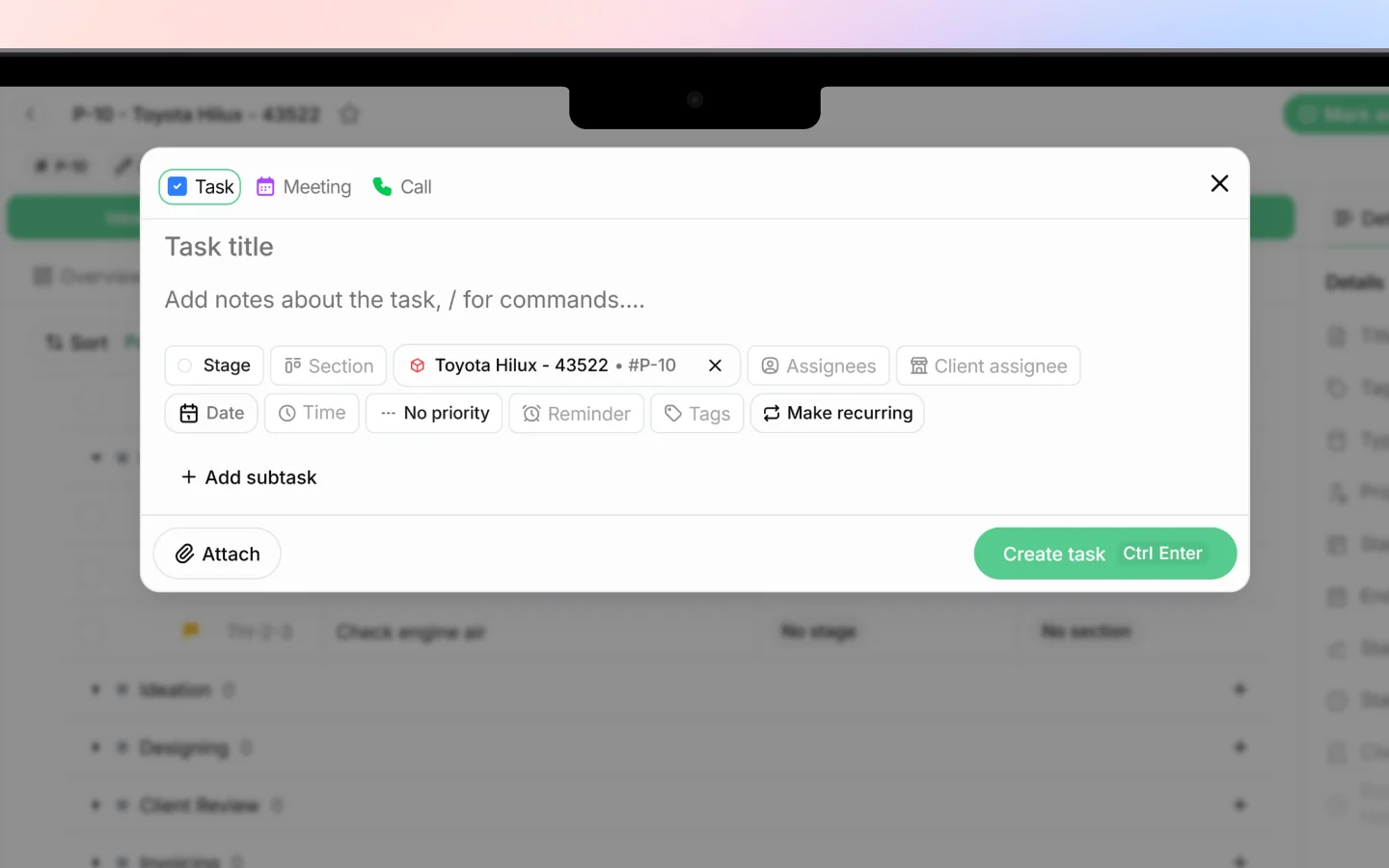
Task details
When adding or editing a task, you can typically set:- Title, what the task is
- Assignee, who is responsible
- Due date or schedule
- Status, marking it open or complete
- A description with any notes
Tracking progress
As tasks are marked complete, the project’s progress updates automatically. On the Kanban board, each project card shows its task count and completion percentage, so you can spot at a glance which projects are on track and which are stalled.Logging time against tasks
Tasks connect directly to timesheets. When a team member logs time, they select the project and the specific task they worked on, so hours are attributed at the task level. This feeds your billable and non-billable totals. See Logging timesheets and tracking hours.Quick task creation
For quick to-dos, the Focus area inside any record lets you add a task with a fast due date (In 1h, In 3h, Tomorrow, Next week, or a custom date). This is handy for capturing a follow-up without leaving what you are doing.What to do next
- Log timesheets against your project tasks
- Move the project through its stages as tasks complete
- Set up recurring projects for repeating task lists