

The layout
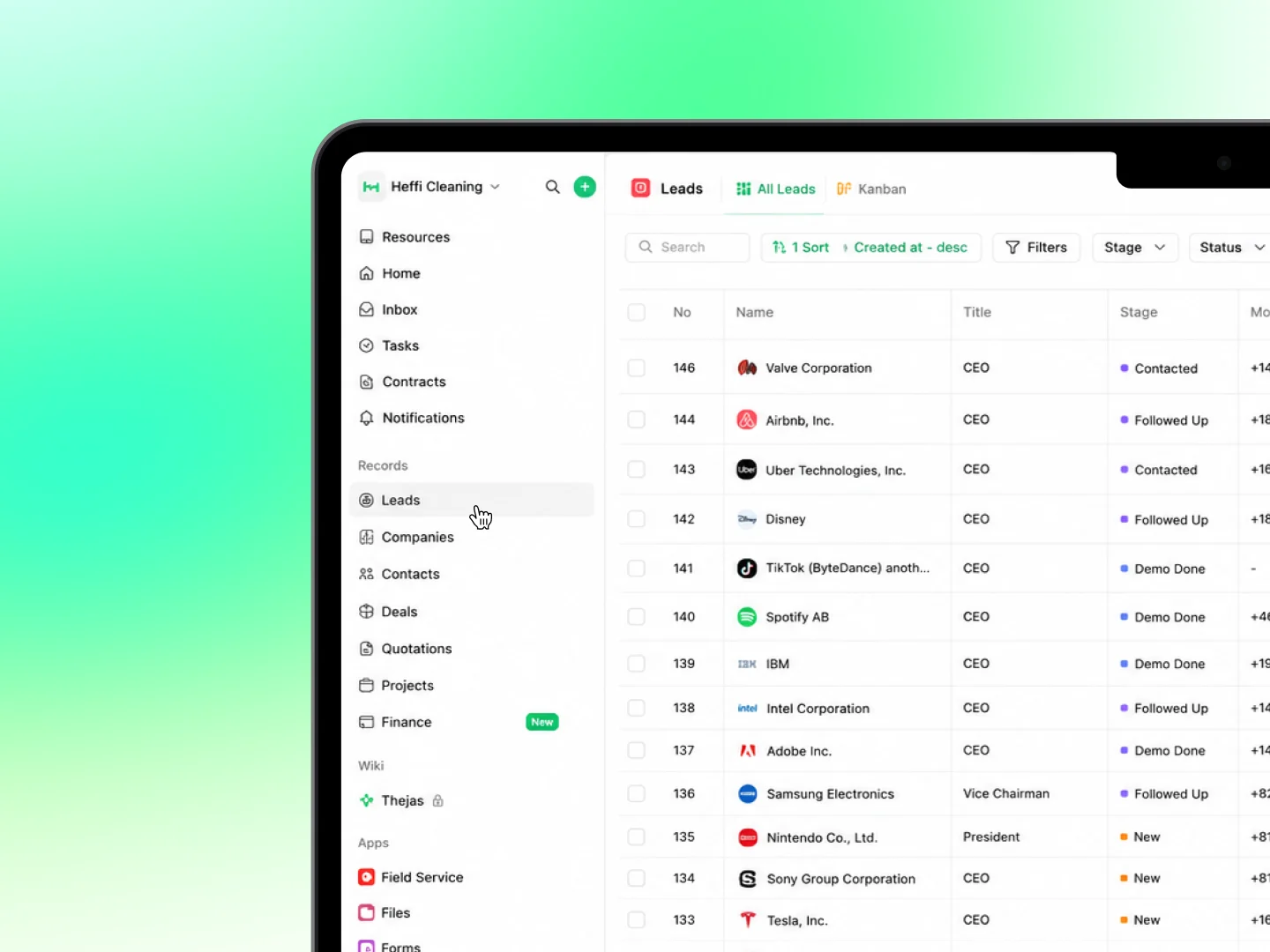
The Heffl interface has three main areas:- The sidebar on the left for navigation
- The top bar for dashboards, search, and account actions
- The main area in the center, where your content and records appear
The sidebar
The sidebar is your primary way to move around. It is grouped into clear sections:Top level
- Home — your dashboard and starting point
- Inbox — messages and updates in one place
- Tasks — your to-do items across the workspace
- Contracts — active agreements
- Notifications — alerts and reminders
Records
Direct access to your core business data: Leads, Companies, Contacts, Deals, Quotations, Projects, and Finance.Apps
Your activated modules: Field Service, Files, Forms, Automations, Reports, Templates, and Apps & integrations.Bottom of the sidebar
- Configure features — turn modules on or off
- Web Tabs — quick links to external sites you have pinned
Switching workspaces
At the very top of the sidebar, you will see your current workspace name (for example, “Heffl Cleaning”) with a dropdown arrow. Click it to switch between workspaces if you belong to more than one. See Switching between workspaces for details.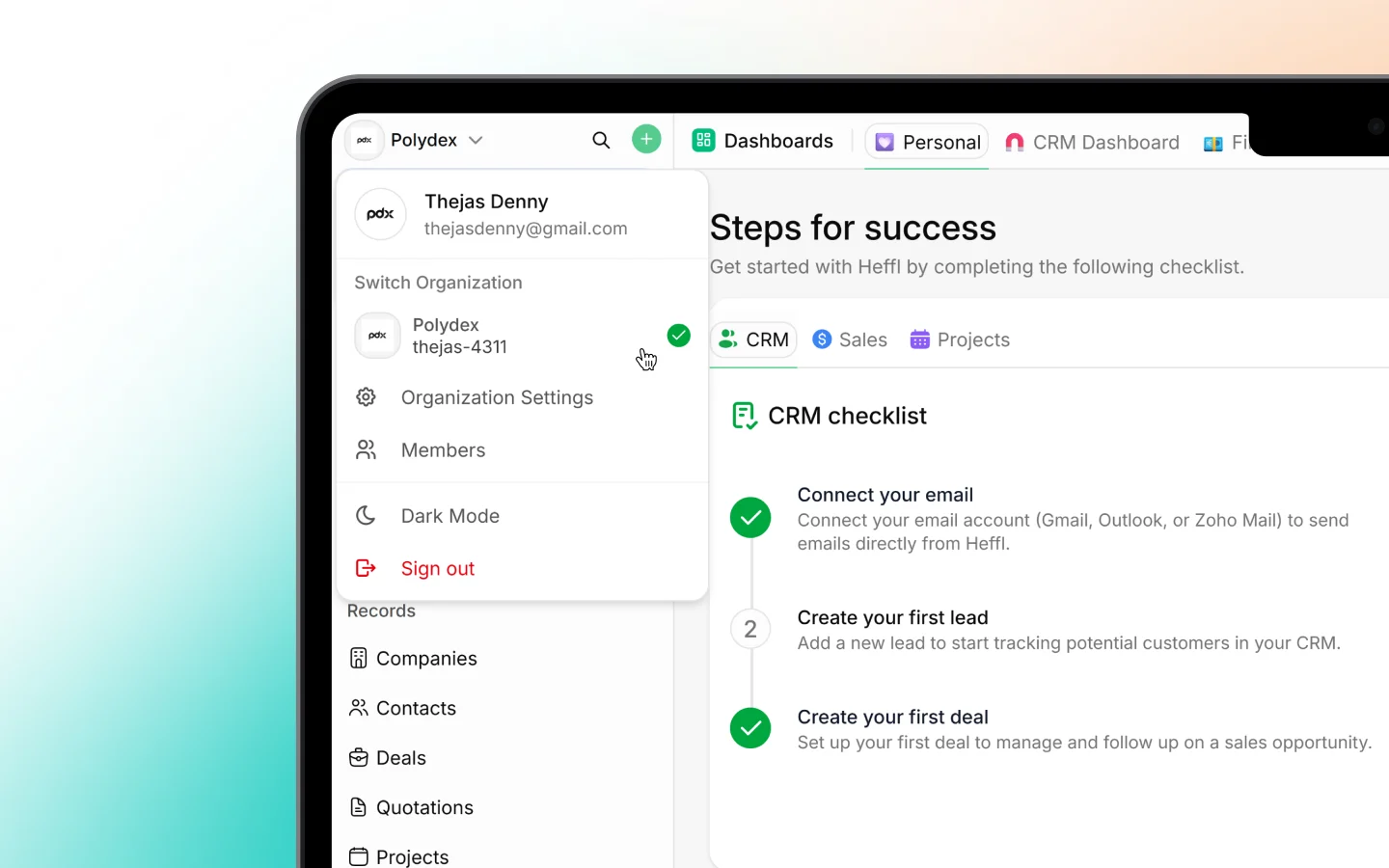
The top bar
Running across the top of the screen:- Dashboard tabs let you switch between your saved dashboards (Personal, CRM Dashboard, Financials, and others)
- The + next to the tabs creates a new dashboard
- Search (the magnifying glass) finds records, pages, and settings instantly
- The + button creates a new record quickly from anywhere
Quick search
Click the search icon or use it from the top of the sidebar to find anything fast. Search works across leads, clients, deals, quotes, projects, and settings. Start typing a name or keyword and select the result to jump straight to it. This is usually the fastest way to reach a specific record, rather than navigating through menus.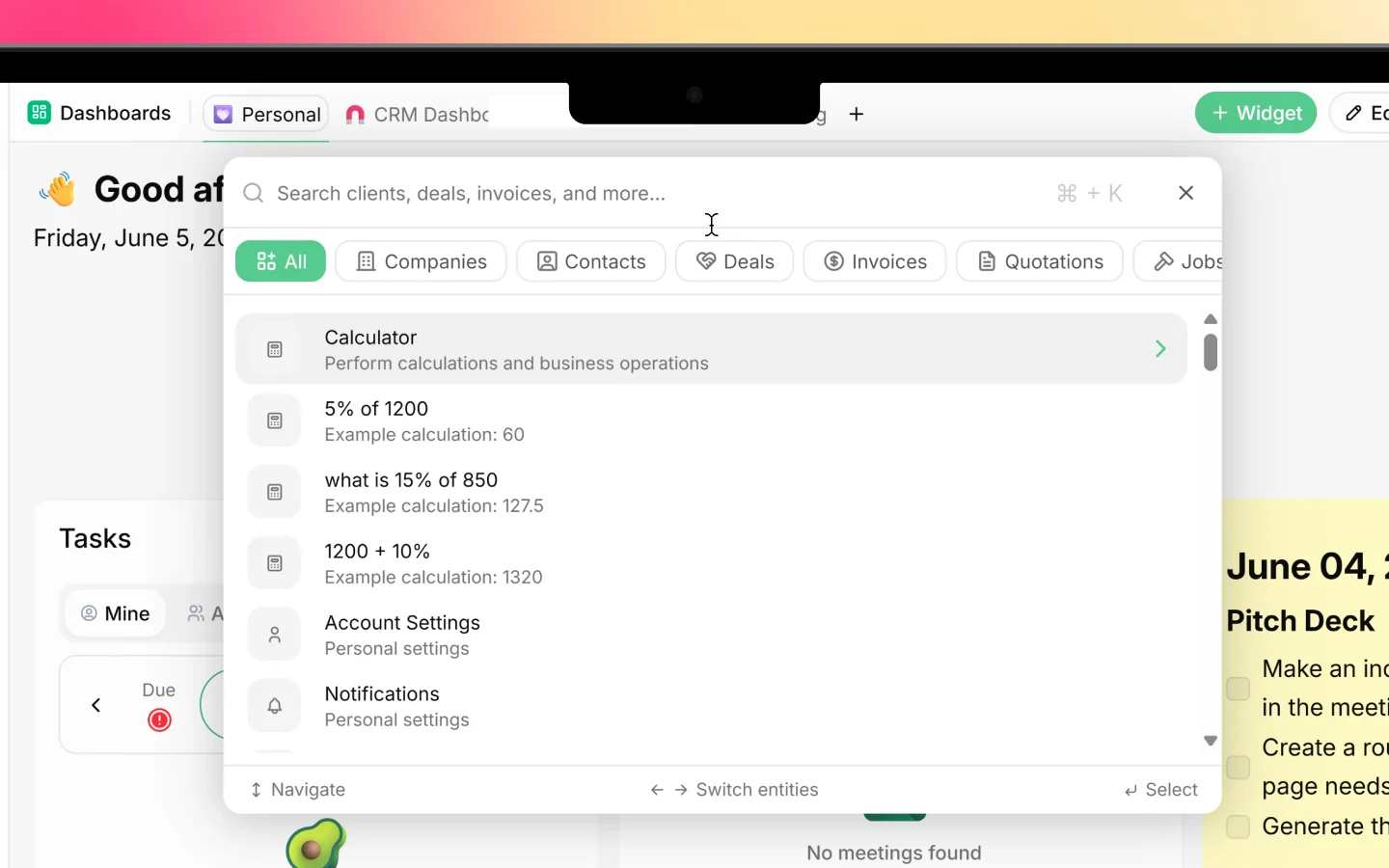
The quick add button
The green + button near the top lets you create new records from anywhere in Heffl, without navigating to the right module first. Use it to quickly add a lead, task, deal, quote, or other item.Moving between records
Within any module, lists show your records in rows. Click a row to open the full record. From there you can:- View and edit details
- See linked items (for example, deals linked to a client)
- Add activities, notes, or tasks
- Move back to the list using the back arrow or breadcrumb at the top
On mobile
The Heffl mobile app uses the same structure in a compact form. The sidebar becomes a menu you open with the menu icon, and search and quick add remain easy to reach. Your data stays in sync with the web version automatically.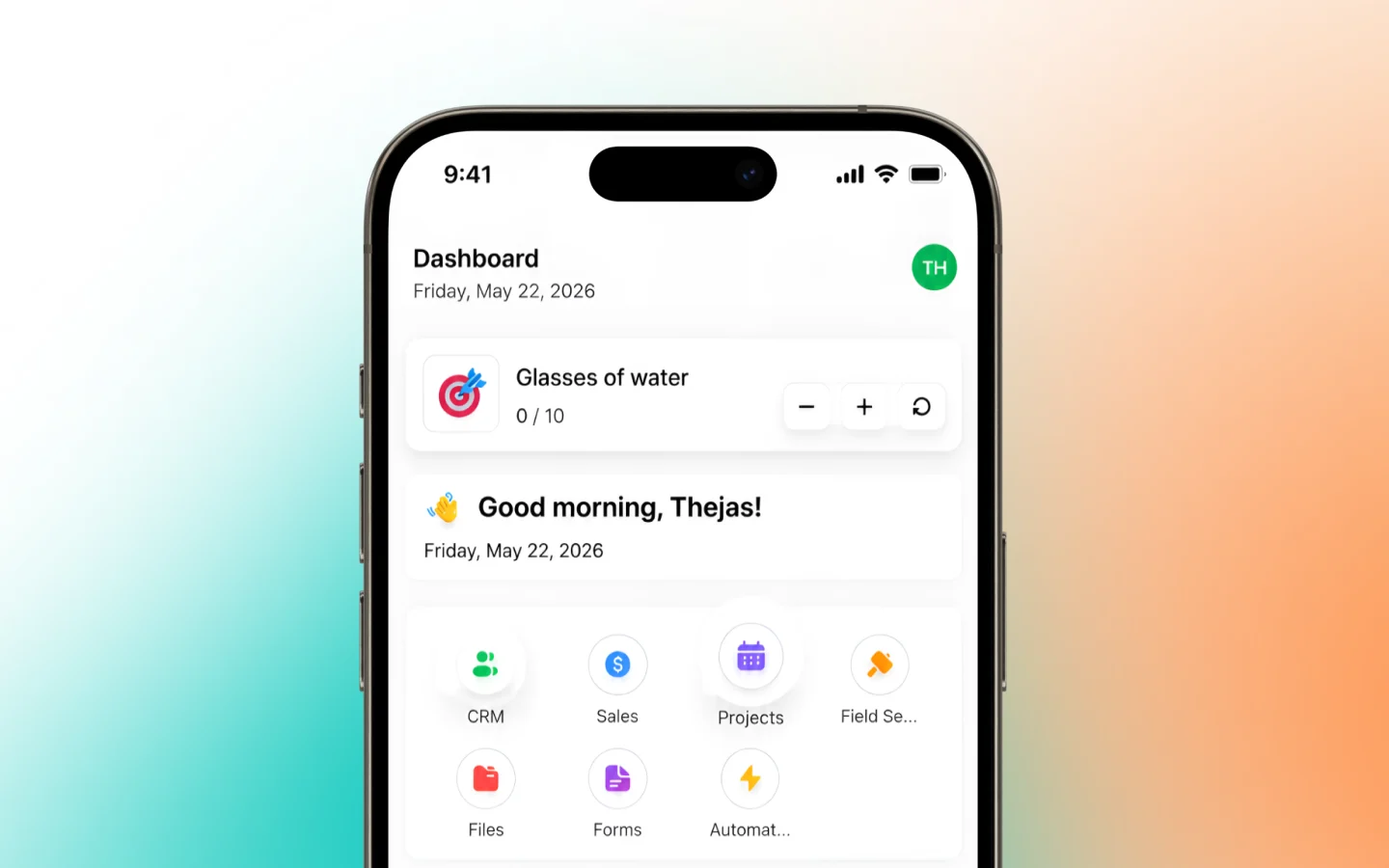
What to do next
Now that you can navigate Heffl:- Use search to find your most-used records quickly
- Pin frequent external links under Web Tabs
- Customize your dashboard so your key information is front and center