

How the client portal works
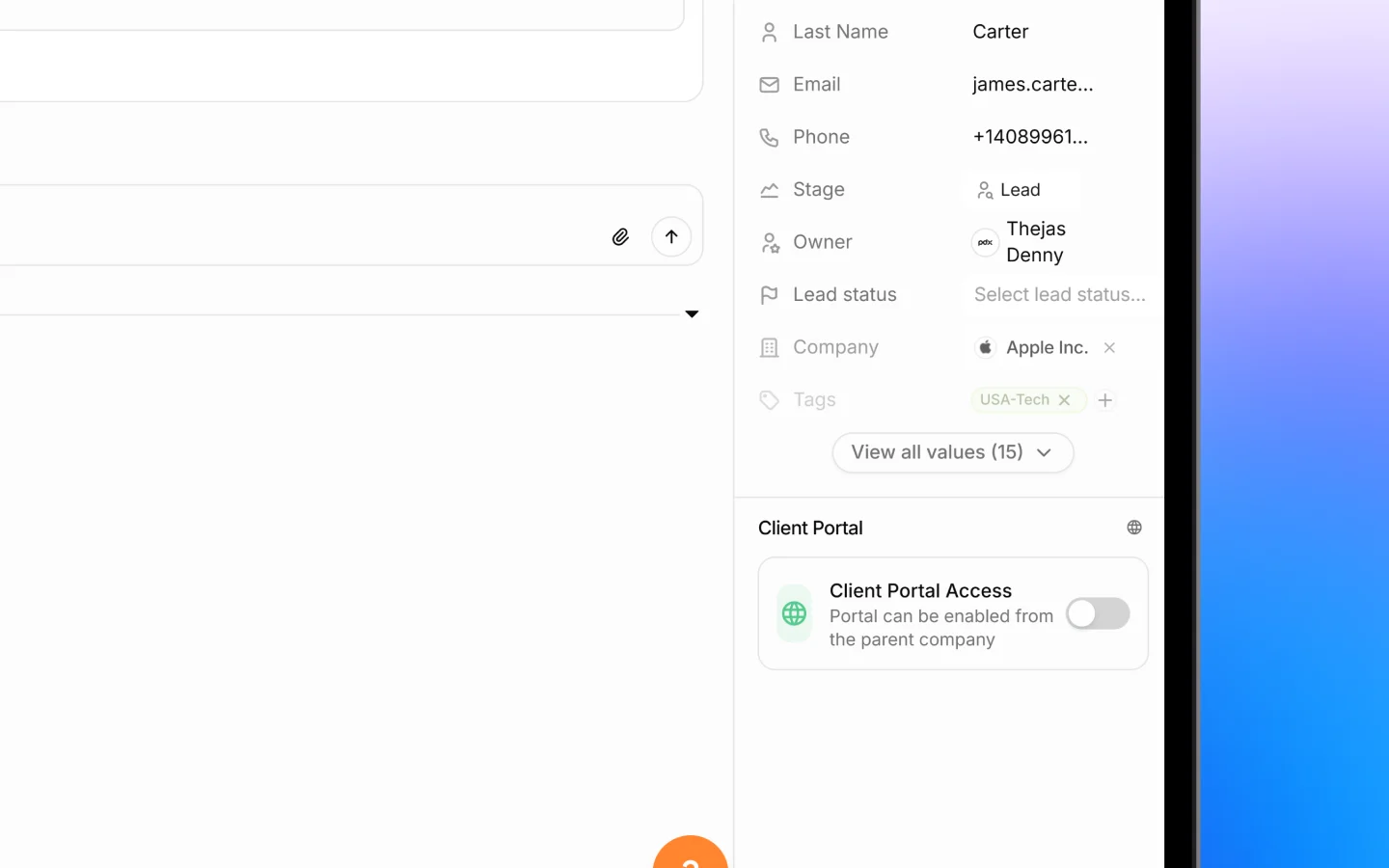
When you enable the portal for a client, the contacts linked to that company can log into a branded portal using their email. Because access is tied to the parent company, all contacts under that company share the same portal, and each needs a valid email on record to log in.Enabling the portal for a client
- Open the company record from Clients or Companies
- In the Client Portal section on the right, find Client Portal Access
- Toggle it on
How clients log in
Clients log in without a password, using a one-time code:- The client opens the portal link
- They enter their email (the one on their contact record)
- A 6-digit code is sent to that email
- They enter it and click Verify code
What clients see
The portal home greets the client by name and shows:- Take Actions, highlighting urgent items such as overdue invoices, with a Pay Now option
- Pending Invoices, with amounts, due dates, and status
- Pending Quotes to review
- Active Jobs in progress
- An About Us block with your company information
- A New request button to contact your team
- Requests, Quotes, Invoices, and Tasks
- Projects and Jobs
- Files and Products/Services
- About Us and Contact
What clients can do
Through the portal, clients can:- View and pay invoices online
- View quotes (quotes are view-only in the portal; acceptance is handled with you directly)
- Track jobs and projects in progress
- View and download files attached to their records
- Submit a new request to your team
Managing file access
Clients do not browse a general file library. They see only the files attached to their own jobs and invoices. To control what a client can access, manage the files attached to their records, anything attached to their job or invoice becomes visible to them in the portal’s Files section. Portal files are view and download only; clients cannot upload files through the portal.Enabling online payments
For clients to pay invoices in the portal, connect a payment provider:- Connect Stripe or Telr under Apps & integrations. See Integrations and connected apps.
- Once connected, a Pay Now option appears on the client’s outstanding invoices in the portal
Managing access
- Enable or disable the portal any time with the Client Portal Access toggle
- Add a contact’s email so that person can log in
- Reshare the link by copying it from the company record
What to do next
- Add contacts with valid emails so clients can log in
- Send quotes and invoices for clients to view and pay
- Connect Stripe or Telr to enable online payments