

Creating an invoice
- Go to Invoices in the sidebar
- Click + Invoice (or press C)
- Choose a template and fill in the details
- Add line items
- Save
Filling in the invoice
The invoice form mirrors the quotation form, with a few invoice-specific fields:- Template and Currency
- Date and Due date, when payment is expected
- Tags and Sales person
- Client and Contact
- Project and Job, to link the invoice to work being delivered
- Subject
- I have received the payment, to mark the invoice paid immediately if the client has already paid
- Payment schedule, to split the invoice into scheduled installments
Form and content views
As with quotes, switch between Form (the structured data) and Content (the document layout) at the top right. The Content editor uses merge variables such as{{Invoice.Number}}, {{Invoice.DueDate}}, {{Client.Name}}, {{Contact.Email}}, and {{Invoice.LineItems}}. These fill in automatically with the invoice’s real data when the document is generated, so your template stays reusable.
Invoice statuses
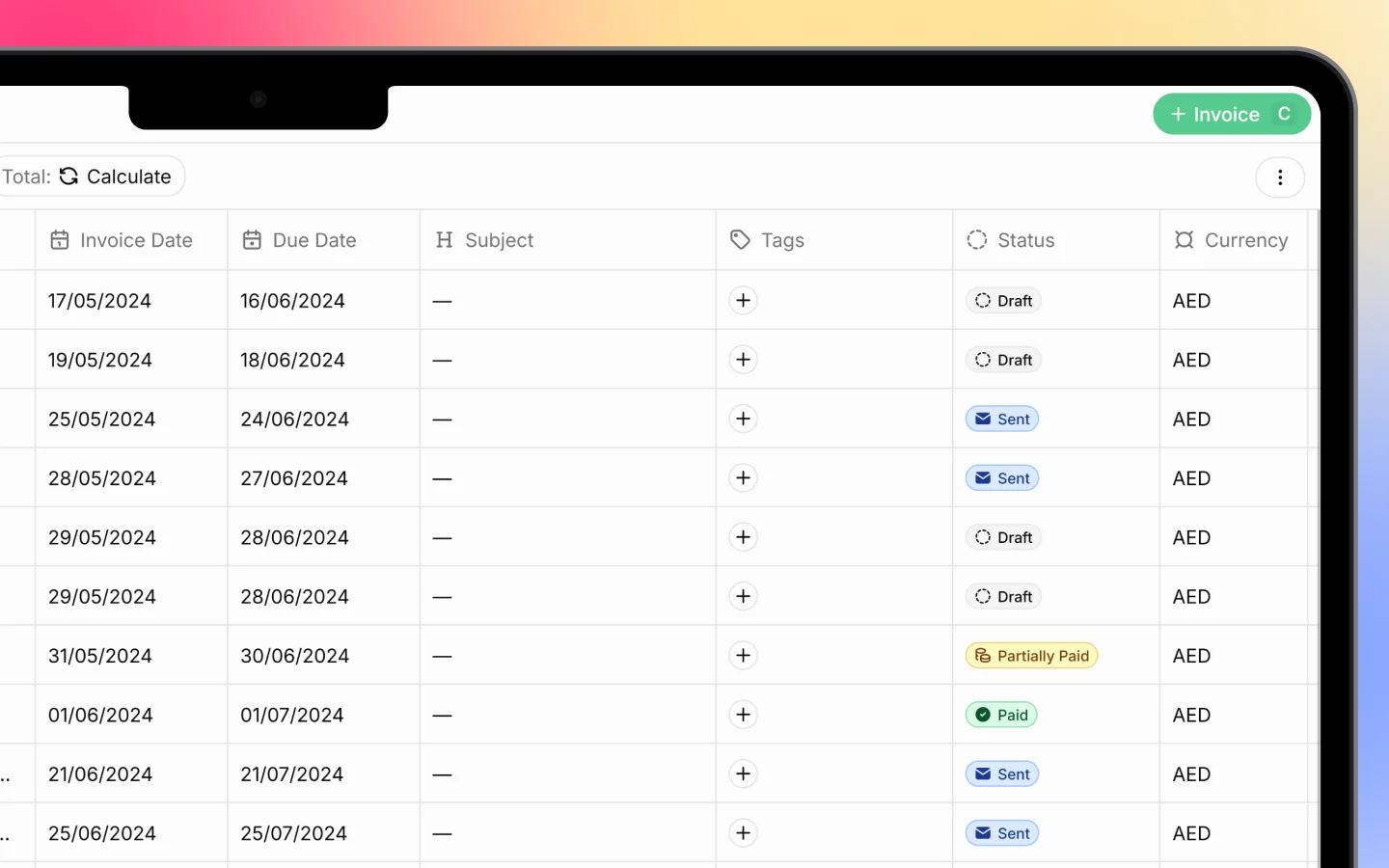
Each invoice carries a status you can see in the list and filter by:- Draft, created but not yet sent
- Sent, delivered to the client and awaiting payment
- Paid, payment received in full
- Overdue, past the due date without full payment
Sending an invoice
Send an invoice the same way as a quote, from the buttons at the top of the invoice:- Send via email delivers it to the client
- Share a link gives the client a link to view and pay online
- Print opens the print dialog, where you can print or save as PDF
- Export PDF downloads a PDF copy
Recording payment
When a client pays, record it against the invoice so its status and balance update. An invoice shows its Paid amount and Balance Due so you always know what is outstanding. See Payments: recording and collecting.Exporting invoices
To export your invoice list, use Export PDF in the top right of the Invoices page. For a single invoice, use Export PDF or Print from within the invoice.What to do next
- Record and collect payments against your invoices
- Set up recurring invoices for repeat billing
- Review proforma invoices for advance billing