

Recording a payment
Record a payment from the Payments page:- Go to Payments in the sidebar
- Click + Payment (or press C)
- Select the Client who paid
- Set the payment details:
- Date the payment was received
- Payment method (such as Bank Transfer or Credit card)
- Deposit to account (such as Undeposited Funds)
- Currency and Amount
- Collected by, the team member who took the payment
- Ref No, an optional reference such as a transaction ID
- Apply the payment to the client’s invoices (see below)
- Click Add payment (or press Ctrl + Enter)
Applying a payment to invoices
Once you select a client, their outstanding invoices appear in the form. You decide how the payment is applied:- Search invoices to find a specific one
- Enter the Payment amount against each invoice, shown alongside its Amount and Pending balance
- Use Bulk Apply to spread the payment across multiple invoices automatically
- Click Pay Full to apply the full outstanding amount
- Amount Received, the total payment entered
- Amount used for Payments, how much has been applied to invoices
- Amount in Excess, what remains after applying it to invoices
Understanding excess and unused amounts
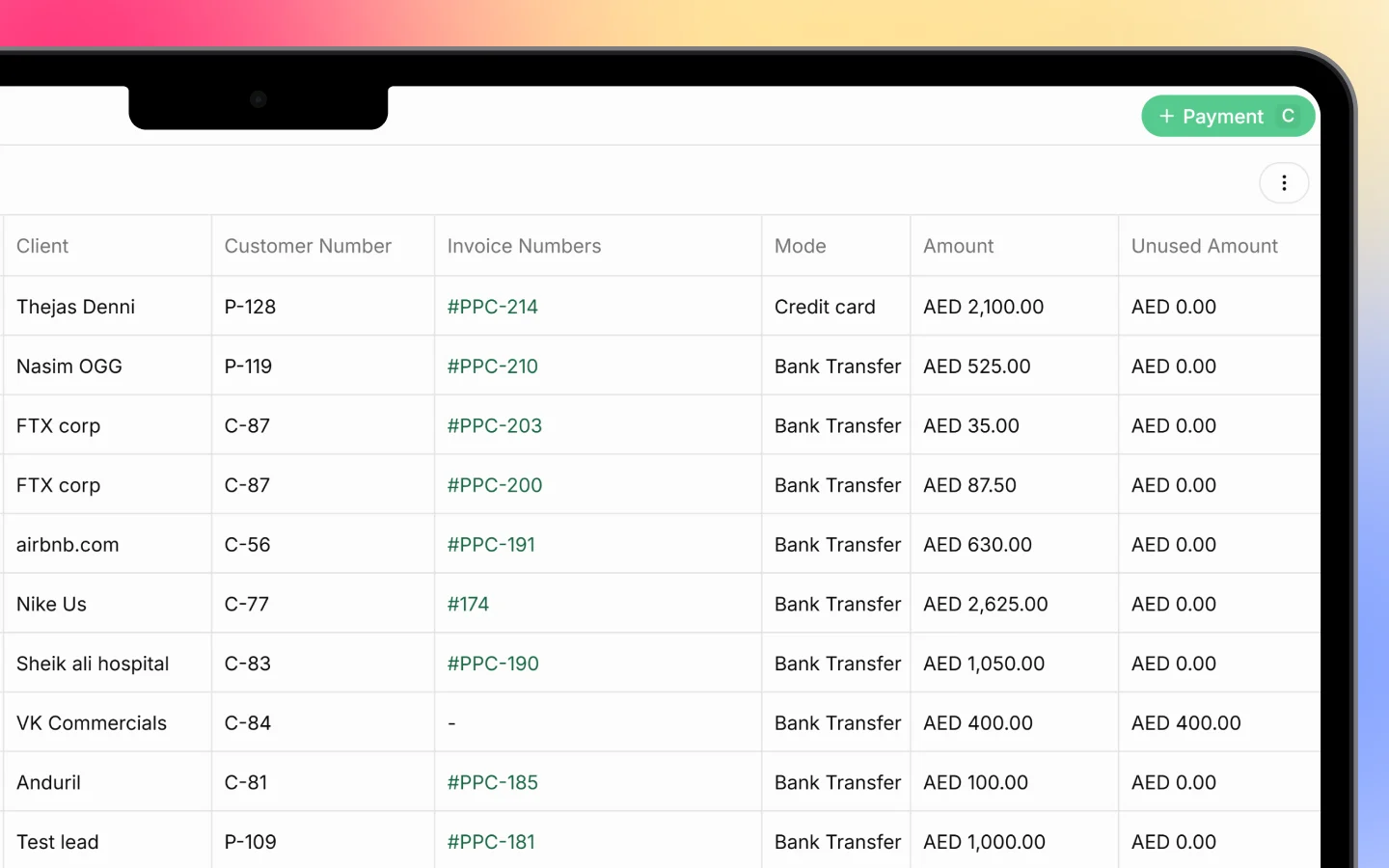
If a client pays more than their invoices require, the leftover is the Amount in Excess. This appears in the Payments list as the Unused Amount, the portion of a payment not yet applied to any invoice. An unused amount stays as a credit against that client, ready to apply to a future invoice. For example, a payment of AED 400 with nothing yet applied shows AED 400 as the unused amount until you assign it.The Payments list
The Payments page lists every payment, one per row, with columns:- Number (such as PAY-5071)
- Date
- Client and Customer Number
- Invoice Numbers the payment is applied to
- Mode (Bank Transfer, Credit card, and so on)
- Amount and Unused Amount
- Reference Number
- Deposited To (such as Undeposited Funds)
- Actions
Collecting payments online
Beyond recording payments manually, clients can pay you online:- Through a shared invoice link
- Through the client portal, where they see outstanding invoices and a Pay Now option
How payments connect to invoices
When a payment is applied to an invoice, the invoice’s Paid amount rises and its Balance Due falls. Once fully paid, the invoice status becomes Paid. This keeps your invoice list and outstanding balances accurate without manual updates. See Invoices: creating, sending, and statuses.What to do next
- Review your invoices to see updated balances
- Apply any unused amounts to new invoices as they are raised
- Set up recurring invoices for clients who pay on a schedule