

How the Wiki is organized
The Wiki uses two building blocks:- Folders group related documents together. Folders can be nested, so you can put folders inside folders to build a structure (for example, a team folder containing sub-folders per topic).
- Documents are the individual pages you write inside a folder.
Creating a folder
- In the sidebar, click the + next to Wiki (or next to an existing folder to nest one inside it)
- In the Create new folder panel, enter a Title
- Optionally add a Description to note what the folder is for
- Choose an icon and color under Appearance to make the folder easy to spot
- Set the Visibility:
- Open means everyone on your team can view and edit
- Private means only invited people can access it
- Click Create folder
Creating a document
- Open a folder
- Click + Document in the top right
- Give the document a title
- Start writing in the editor
Using the editor
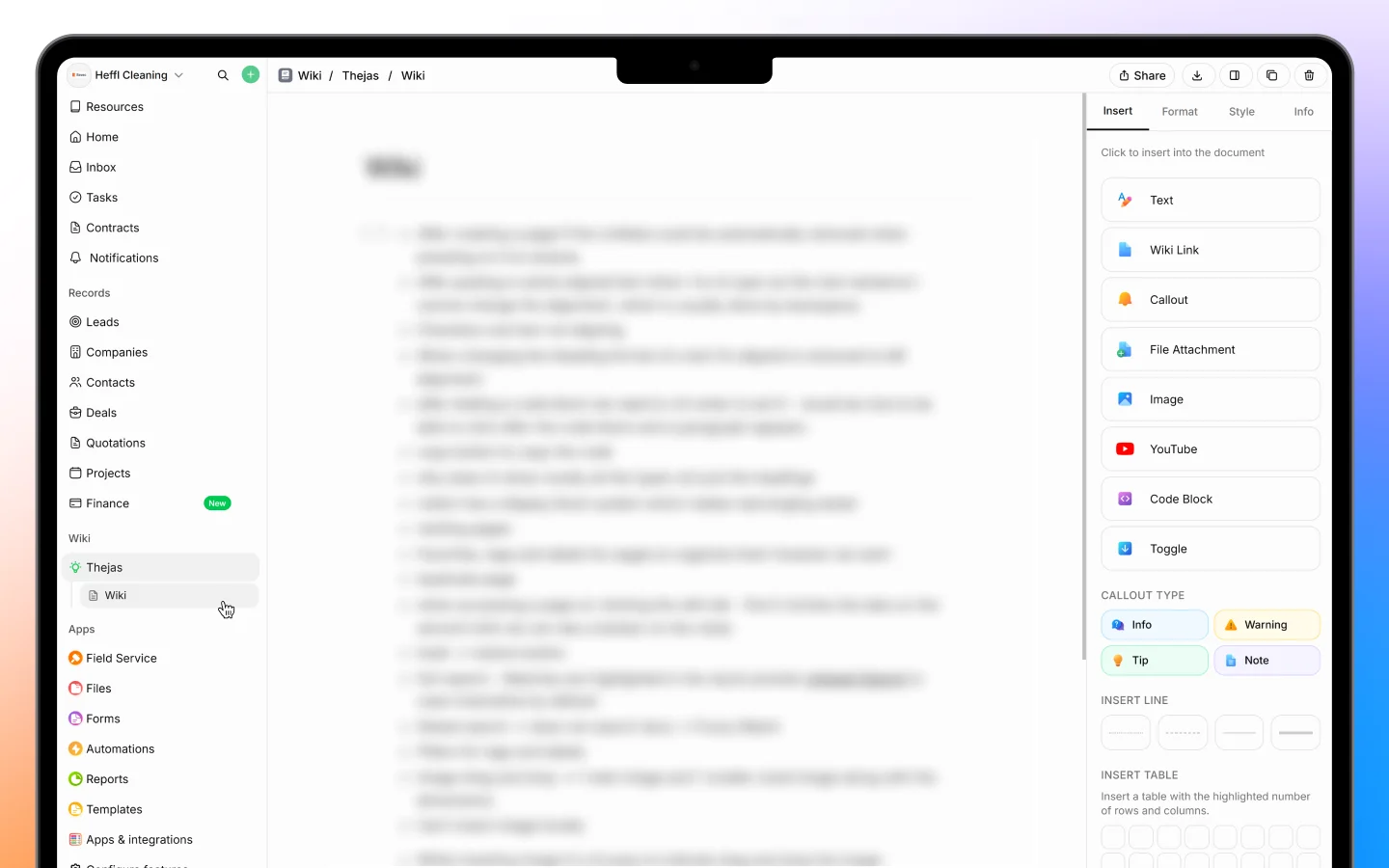
You can add content blocks two ways. The Insert panel The panel on the right lists every block. Click one to insert it: Text, Wiki Link, Callout, File Attachment, Image, YouTube, Code Block, and Toggle, plus dividers (Insert Line) and tables (Insert Table). The slash command Type/ anywhere in the document to open an inline insert menu, then pick a block without leaving the keyboard. The menu includes Text, Heading 1, Heading 2, Heading 3, Bullet List, Numbered List, Task List, Embed, YouTube, Callout, Toggle, and Table. This is the quickest way to build a document as you write.
Callout types Callouts come in four styles for highlighting different notes: Info, Warning, Tip, and Note.
The tabs at the top right, Insert, Format, Style, and Info, switch between adding content, formatting text, styling the page, and viewing document details.
Linking between documents
Use the Wiki Link block to link one Wiki document to another. This lets you connect related notes, for example linking a meeting note to the guide it references. Wiki Links point to other Wiki documents, so the Wiki works as a connected internal knowledge base rather than linking out to records like leads or projects.Sharing and visibility
Click Share in the top right of any document to control who can see it. Sharing follows the folder’s visibility setting:- A document in an Open folder can be viewed and edited by everyone on your team
- A document in a Private folder is limited to invited people
When to use the Wiki
The Wiki is best for:- Internal documentation and team guides
- Meeting notes and follow-up action lists
- Standard operating procedures
- Anything your team needs to find and edit later
What to do next
- Create a folder for each major topic or team, nesting sub-folders where helpful
- Set folder visibility to Open or Private depending on sensitivity
- Add documents and connect related pages with Wiki Links