

Where to find it
Open any lead, contact, or deal and you will land on the Activity tab. It has two parts:- Focus at the top, for setting a quick task or next action
- History below, a timeline of everything logged, newest grouped by date
Logging activity
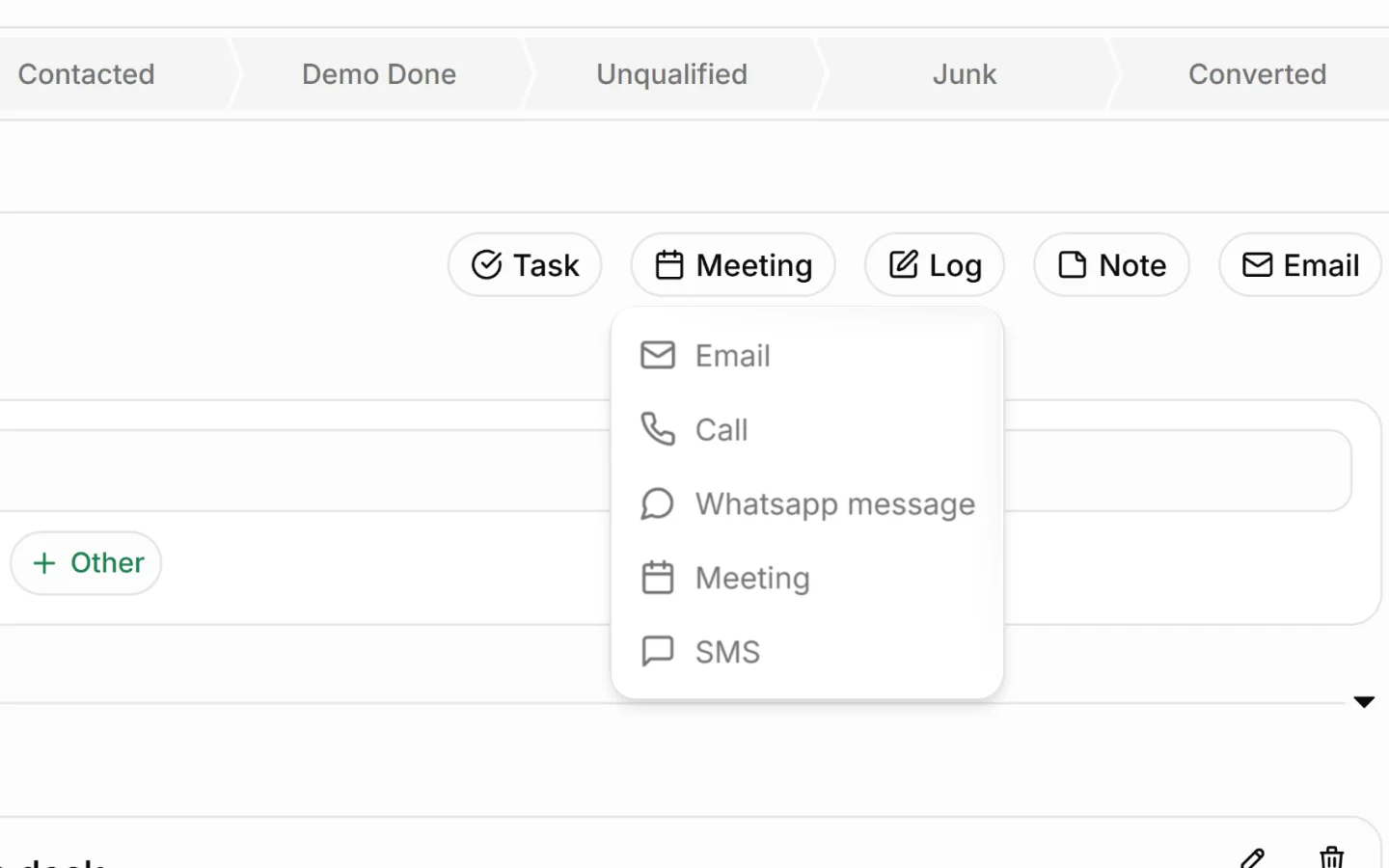
Use the buttons to record different kinds of interaction: Log Record a call or general interaction that has already happened. Use this to note the outcome of a phone call or conversation. Meeting Schedule or record a meeting. Useful for tracking site visits, demos, and calls with a set time. Email Log an email related to the record, keeping correspondence attached to the right lead, contact, or deal. Note Add a written note (covered in detail below). Each entry is timestamped and added to the History timeline, so you and your team can see the full sequence of events.Adding and viewing notes
Notes capture detail: what was discussed, what was agreed, or anything worth remembering.To add a note
- Click Note in the button row
- Type your note
- Save
Setting follow-ups and next activity dates
Follow-ups make sure nothing goes cold. In the Focus area at the top of the Activity tab:- Type a task title in the Task title field
- Choose when it is due using the quick options: In 1h, In 3h, Tomorrow, Next week, or Other for a specific date
- The task is created and tied to this record
The activity timeline
The History timeline is a running record of everything that has happened, including:- Activities you log (calls, meetings, emails)
- Notes and comments
- System events, such as “Lead converted to deal” or “created Deal”
- Who did each action and when
Why this matters
Logging activity consistently means:- Anyone on your team can pick up a lead or deal and see its full history
- Follow-ups are scheduled, not forgotten
- Reports reflect real activity
- Nothing depends on one person’s memory
What to do next
- Filter leads by next activity date to plan follow-ups
- Add notes and tags to organize records further
- Convert active records into deals or projects