Adding a lead
Option 1: Add a single lead
- Go to Leads in the sidebar
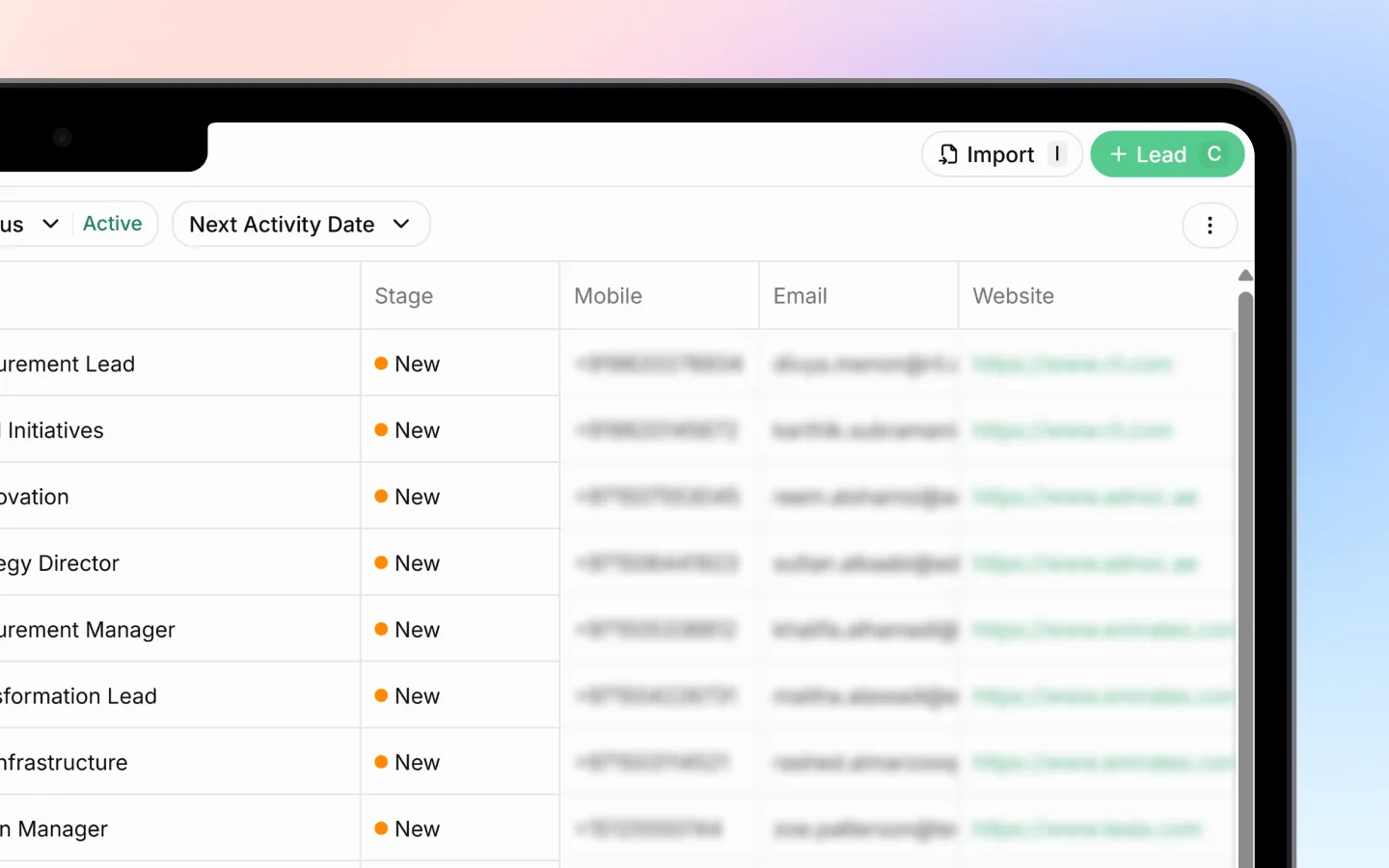
- Click + Lead in the top right (or press C)
- Enter the lead’s name (a person or business name)
- Fill in any custom fields, such as Channel and Source
- Click Add lead (or press Ctrl + Enter)
Option 2: Import many leads at once
If you have leads in a spreadsheet, import them in bulk:- Click Import in the top right
- Upload your file by dropping it in or clicking Browse files
- Select header to tell Heffl which row contains your column titles
- Map columns to match your file’s columns to Heffl fields (Name, Mobile, Email, Title, Value, Source, and others). Only Name is required.
- Confirm to finish the import
Viewing and organizing leads
The Leads page has two views, switchable from the tabs at the top:- All leads shows your leads in a list, one row each
- Kanban shows leads as cards grouped by stage
- Search to find a lead by name
- Sort to order by created date or other fields
- Filters to narrow by specific criteria
- Stage and Status to show only leads at a certain point
- Next Activity Date to focus on what needs attention soon
Editing a lead
To edit a lead’s core details, click the lead row to open it, then update any field. You can also edit some fields directly from the list without opening the lead:- Stage — click the stage cell to move the lead forward (New, Contacted, Followed Up, Converted)
- Add Note — click to attach a note
- Tags — click the + to add a tag such as VIP
- Mobile, Email, Website — click the cell to add or change contact details
Adding notes, tags, and activities
Keep each lead’s history in one place:- Notes record what was discussed or agreed
- Tags group leads for quick filtering (for example, VIP or Technical service)
- Activities and follow-ups track calls, meetings, and the next action date so nothing slips
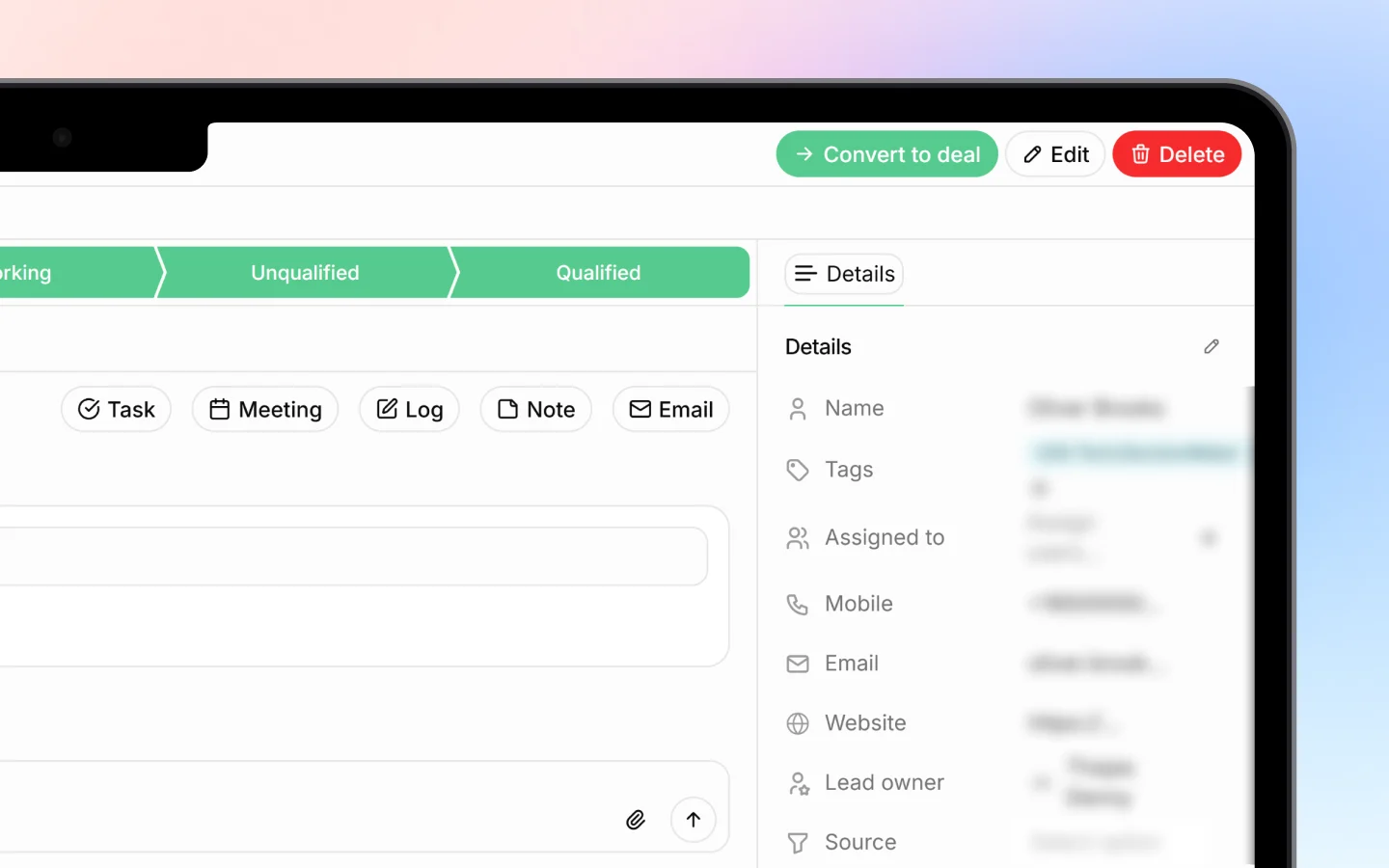
Converting a lead to a Deal
When a lead is ready to do business, convert it. Converting turns the lead into a detailed Deal, while keeping all its history.- Open the lead
- Click Convert to Deal
- Enter the details